Ask your first question
For each user, once the assistant is connected.
Tell the assistant where to work
Your administrator sends you the Connection Prompt: a short text with the tenant, environment and company. Paste it into the chat and send it, so the assistant knows where to work.
If you can open Bifrost Setup in Business Central, you can also copy the Connection Prompt yourself, from its Environment section.
Each company has its own prompt. To switch company, paste the prompt of the other one, or ask the assistant to list your companies and switch.
Ask who you are
Ask "Who am I in Business Central?". The first time, the assistant asks before it uses a Bifröst tool; choose Allow once so you see what it does.
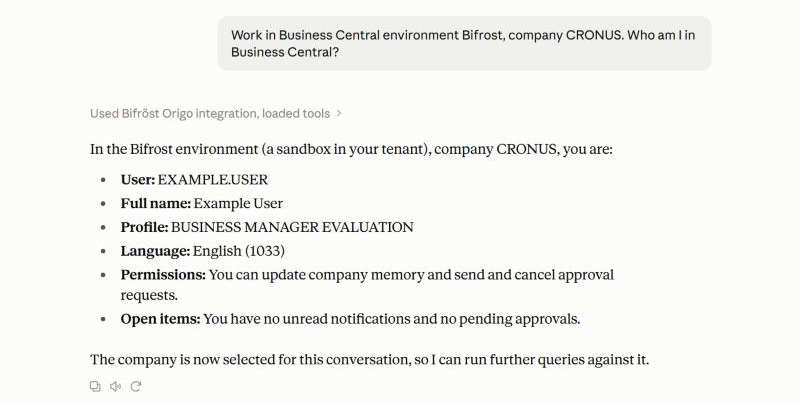
Check the answer. It should name your own user and the company you meant. Look at the environment too: if it is your production environment, be careful with anything that changes data.
- The company is wrong: ask the assistant to switch company.
- The user is wrong: stop, and tell your administrator.
- The assistant has no Business Central tools: the connector is not switched on in this chat; see Connect your assistant.
- The assistant gives you an approval link: your company approves each new assistant once. Open the link, or send it to your administrator; see Approving a new assistant.
- No environments or companies appear: the one-time consent for your organisation is missing. Tell your administrator; see Consent once.
- Calls are refused for the company: the setup wizard has not been finished in that company. Tell your administrator.
What next
- Using Bifröst: what you can ask, what it will not do, and what to do when it says no.
- What you can ask: examples, from a lookup to a change you see first. You are working in your company's real data: say "show me first" before anything that changes it.