Connect your assistant
For each user. You need the MCP server address from your administrator; see Pick your assistant.
You connect once, and sign in as yourself, so the assistant works with exactly your permissions in Business Central.
Claude
In Claude, the connector is called Bifröst Origo. The steps are the same on the web and in Claude Desktop. Claude's own help describes them in Get started with custom connectors using remote MCP.
-
Add the connector. In Claude, open Customize and then Connectors (in older versions of Claude Desktop: Settings › Connectors), and choose + Add. Until Bifröst is in Claude's connector directory, choose Add custom connector: give it a name and paste the MCP server address you got from your administrator. Leave the options marked Detected as they are and choose Add. They mean that each person signs in as themselves, and that no client ID or secret is needed; if they are not detected, check the address. In a Claude Team or Enterprise organisation, an owner adds it once for everyone, and the owner may have to allow custom connectors first. Once it is listed, the Anthropic Claude action under Connectors on Bifrost Setup opens it.
-
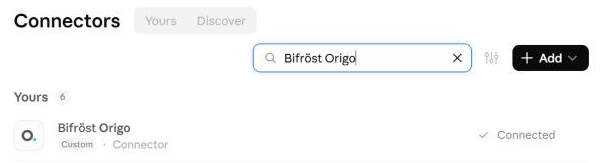
Sign in. Choose Connect and sign in with the account that has access to Business Central; if you have more than one, pick that one. Microsoft shows what the connector asks for: it acts on your behalf, so it reaches only what you can reach yourself. Choose Accept. Leave Consent on behalf of your organization alone unless you are the administrator giving consent for everyone. The connector is connected when it shows Disconnect.
-
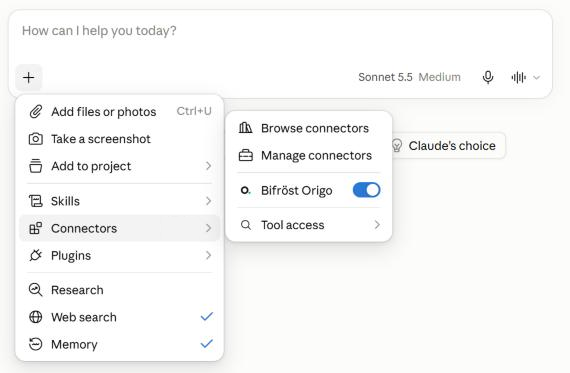
Turn it on in a chat. Choose +, then Connectors, and make sure Bifröst Origo is switched on.
-
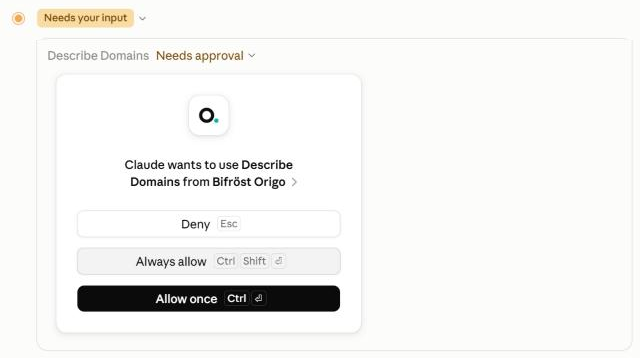
Approve its tools. The first time Claude wants to use a Bifröst tool, it asks. Allow once lets you check each call; Always allow stops asking for that tool. Start with Allow once, so you see what is called; in the connector's settings you can later choose which tools always ask.
-
Ask your first question: see Ask your first question.
Microsoft Copilot
The Bifröst connector is not in Microsoft's store yet. Until it is, the Microsoft Copilot action under Connectors on Bifrost Setup opens the store's public catalogue, without Bifröst in it.
Meanwhile, if your Copilot lets you add a remote MCP server or a custom connector, add Bifröst that way: see Other assistants. Whether it can depends on your Copilot and your organisation's settings; ask your administrator.
ChatGPT
The Bifröst connector is not in OpenAI's store yet. Until it is, the OpenAI ChatGPT action under Connectors on Bifrost Setup opens the store's public catalogue, without Bifröst in it.
Meanwhile, if your ChatGPT workspace lets you add a remote MCP server or a custom connector, add Bifröst that way: see Other assistants. Whether it can depends on your plan and your organisation's settings; ask your administrator.
Other assistants
The steps follow the same pattern as for Claude: add the connector, sign in, turn it on, approve its tools, ask.
An assistant that supports remote MCP servers can connect too: add the Bifröst MCP server address as a remote MCP server or custom connector in its settings, and sign in with your work account. Where to find that setting is in the assistant's own help.
Next: Ask your first question