Step 3: Consent once for your organisation
Who is needed: A Global Administrator or Application Administrator in Microsoft Entra ID, once for the whole organisation, after step 2.
Assistants connect to Bifröst through MCP, the standard AI assistants use to reach other systems. Origo runs the Bifröst MCP server for this; you do not install anything. Before anyone can sign in to it, your organisation gives its consent once.
What you get from the setup wizard
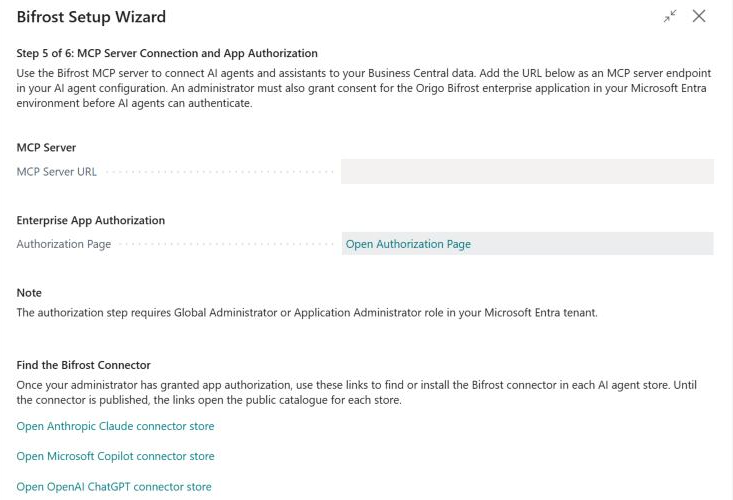
Online, step 5 of the setup wizard gives you:
- the Bifröst MCP server address, which assistants connect to. Your users need it in Connect your assistant, so keep it at hand;
- the consent link (Open Authorization Page) for the Origo Bifrost enterprise application;
- links to the Bifröst connector in the assistants' stores. Until the connector is published in a store, the link opens that store's public catalogue.
What the consent grants
The consent is tenant-wide admin consent for one enterprise application, Origo Bifrost, in your Microsoft Entra ID.
- It lets the Bifröst MCP server sign your users in and call Business Central on each user's behalf. It has no access of its own: every call runs as the signed-in user, so it reaches only what that user can reach in Business Central.
- It gives nobody access by itself. A user still signs in as themselves, and still needs a Business Central user with the Bifröst permissions from step 2.
- Entra shows the exact permissions before you accept. Review them on the consent screen. What tenant-wide admin consent means: Microsoft's Grant tenant-wide admin consent to an application.
The MCP server passes requests and answers through. What Origo keeps, and what it does not, is in Privacy.
Give the consent
The Entra administrator opens the consent link once, reviews the permissions and accepts. From then on the MCP server can sign your users in.
You can finish the wizard first and send the link to your Entra administrator.
If step 5 shows no server address or consent link, or an address that does not look right, contact your Business Central partner.
Check that it worked
- In the Microsoft Entra admin center, Enterprise applications lists Origo Bifrost.
- A user who connects an assistant can sign in, and the answer to "Who am I in Business Central?" lists their companies. If no companies appear, the consent is missing.
Withdraw it
In the Microsoft Entra admin center, open Enterprise applications, choose Origo Bifrost and then Properties:
- set Enabled for users to sign-in? to No to stop all sign-ins and keep the setup (Disable user sign-in);
- or choose Delete to remove the application and its consent (Delete an enterprise application).
Assistants can then no longer reach Business Central through Bifröst. Integrations that call Bifröst with their own Entra application are not affected.
On-premises
The hosted MCP server and this consent are for Business Central online. On-premises, the setup wizard points you to the Local MCP server instead, which you run alongside your Business Central installation; your Business Central partner can set it up. Connect assistants to that.
Find it again later
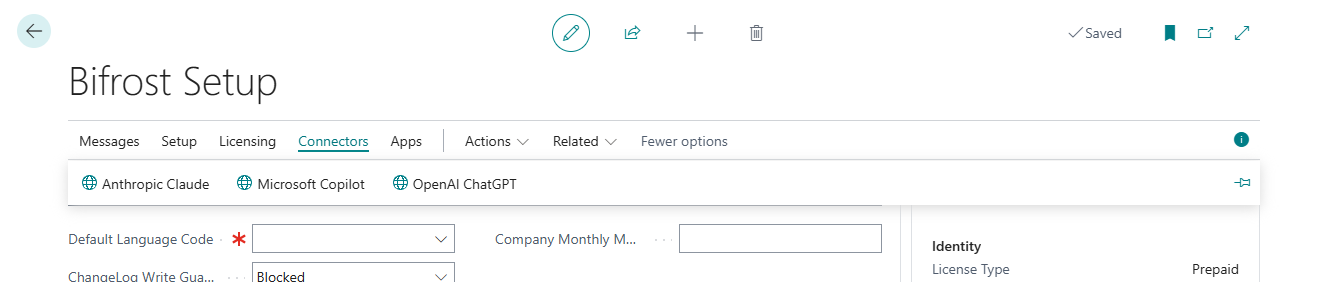
Open the setup wizard again from Bifrost Setup (Licensing › Setup Wizard) and go to step 5; close it with X if you do not want to finish it again. The Connectors group on Bifrost Setup opens the Bifröst connector in each assistant's store.
Next: Step 4: Set up your data