Step 2: Set up Business Central
Who is needed: A Business Central administrator (SUPER for outbound HTTP, SECURITY or SUPER for permissions), and someone entitled to accept terms for the company.
Run the setup wizard
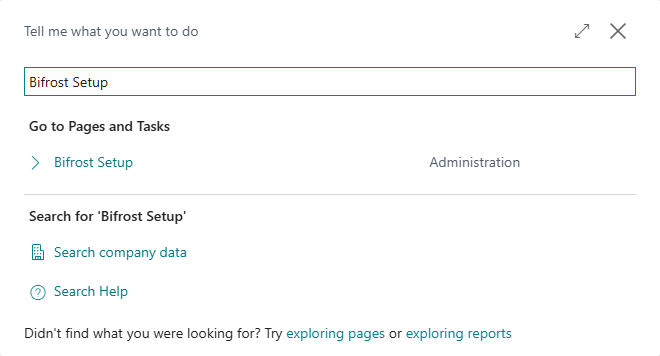
Open Bifrost Setup: choose the search icon (Tell me) and type Bifrost Setup. In Business Central the Bifröst pages are spelled without the ö: Bifrost Setup, Bifrost Messages and so on.
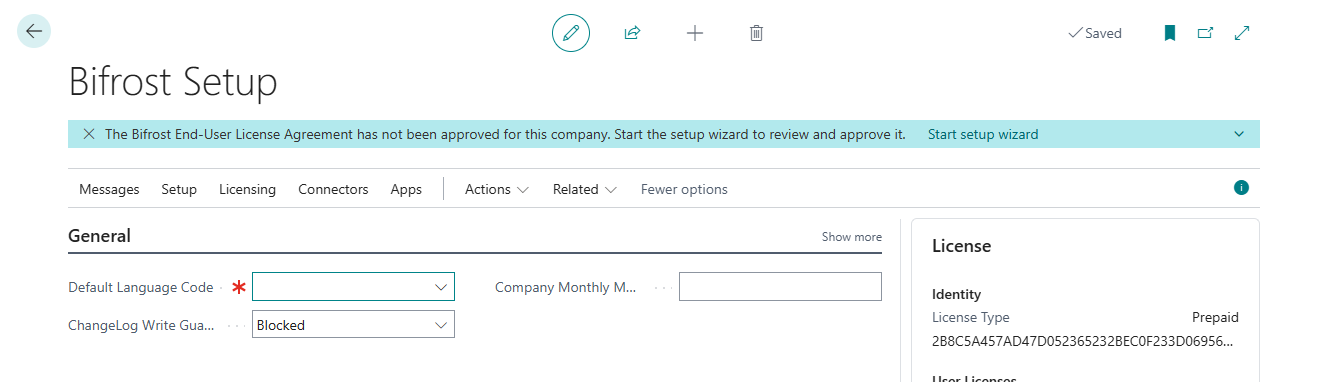
The first time, a notification at the top says that the license agreement has not been approved for the company. Start setup wizard on it opens the setup wizard. It covers every Bifröst app you have installed, so no app asks for setup on its own. Other Bifröst apps also have a setup page for their own area, reached from the Apps group on Bifrost Setup and described in that app's help.
The wizard takes you through the license agreement, outbound HTTP for every installed Bifröst app, licensing, and, online, the connection to the Bifröst MCP server. On-premises it also asks for the credentials the apps need. Every company runs it once: until it is finished, Bifröst refuses calls for that company.
Online in production, finishing the wizard activates the trial, if your Microsoft Entra tenant has not had one yet. A sandbox needs no trial. On-premises, the connection to the licensing service is verified first.
The wizard has six steps. Steps 1, 2, 4 and 6 are for you. Step 3, credentials, appears only on-premises. Online, wizard step 5 gives the consent link for setup step 3; you can finish the wizard first and send the link to your Entra administrator.
The agreement is approved, and the trial started, only when you choose Finish, so you can go back and forth with Back and Next. Outbound HTTP (step 2) and credentials (step 3) are saved as soon as you set them.
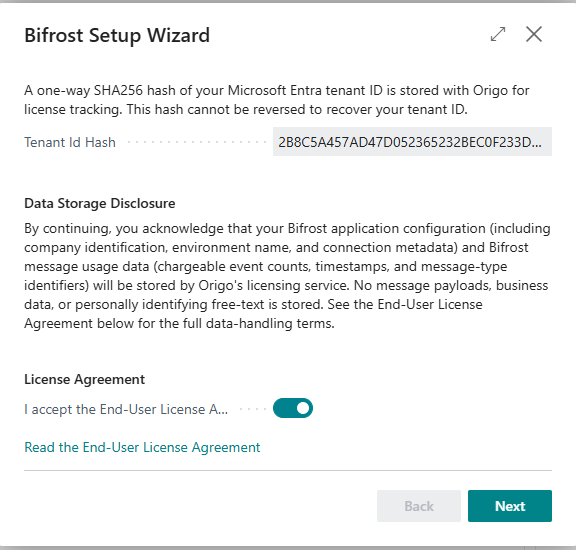
Step 1: Welcome. The page shows the one-way hash of your Microsoft Entra tenant ID that Origo stores for licensing, and what else is stored: configuration and usage counts, never the content of your messages or your business data. Read the agreement, then turn on I accept the End-User License Agreement; Next stays unavailable until you do.
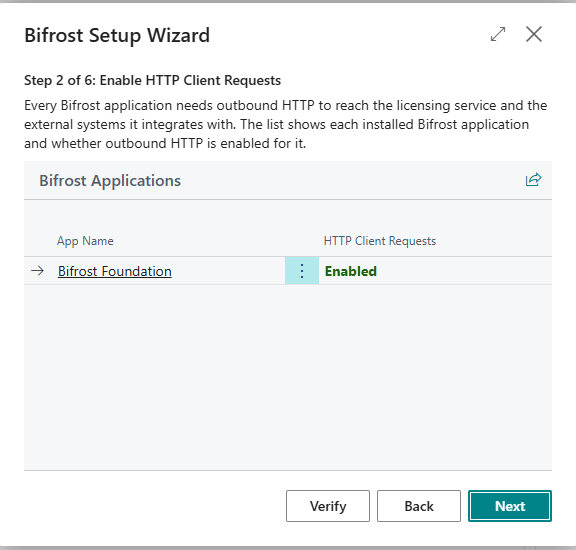
Step 2: Enable HTTP Client Requests. The list shows each installed Bifröst app and whether outbound HTTP is on for it. Choose Enable HTTP for all apps to turn it on for every app that does not have it yet; Next stays unavailable until it is on for all of them. Turning it on needs SUPER (or write permission on NAV App Setting).
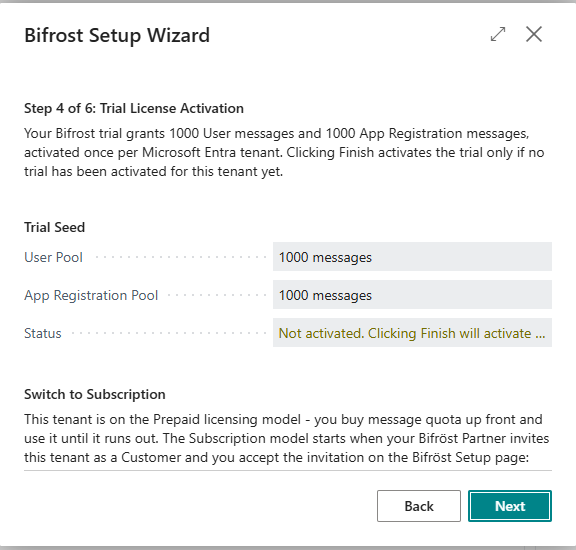
Step 4: Trial License Activation. A production company gets a trial of 1,000 user messages and 1,000 app registration messages, once per Microsoft Entra tenant; Status says whether it is already active. In a sandbox this step is called Sandbox Licensing instead.
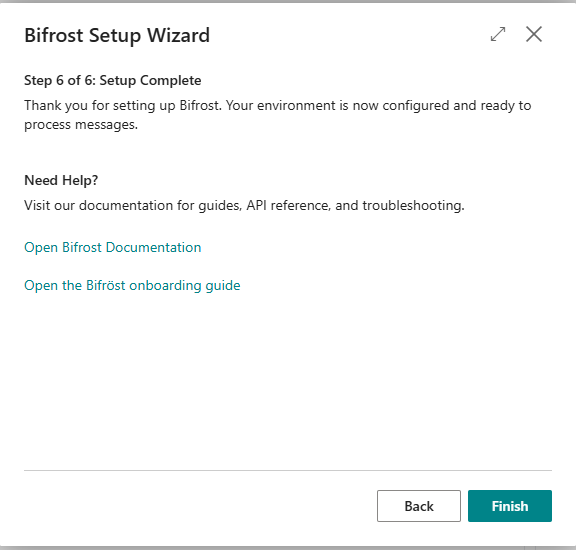
Step 6: Setup Complete. Links to the documentation. Choose Finish.
After Finish, Bifrost Setup no longer shows the notification, and the License pane shows the license type and the messages left.
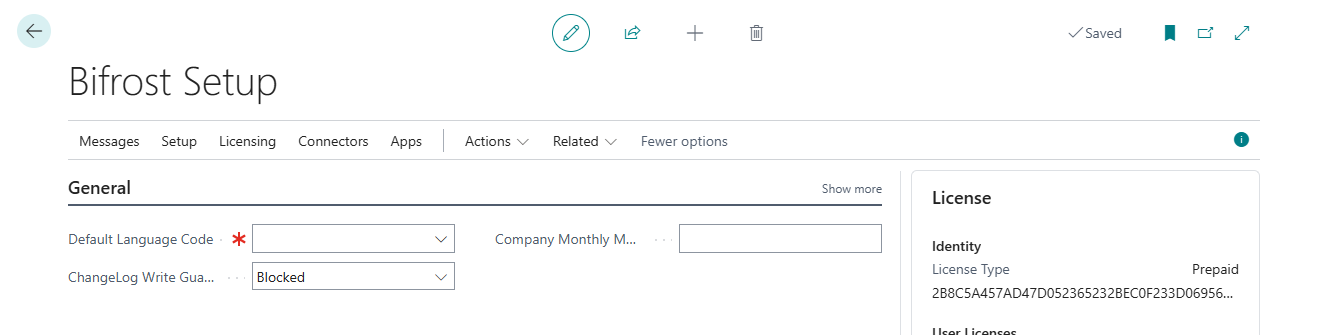
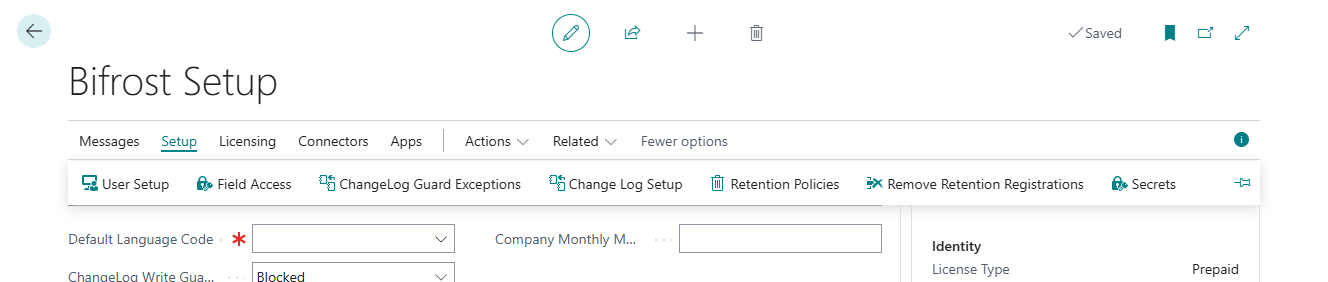
Default Language Code is marked as required, but Bifröst works without it. It is the language Bifröst answers in when a call does not ask for one. Empty means the language of the company, and English if that is empty too.
Step by step: Setup wizard.
Accepting the license agreement accepts the Terms of Use for the company. The first step of the wizard says what Bifröst stores with Origo; see also Privacy. Read both before you accept.
Find your way around Bifrost Setup
Bifrost Setup is the home of Bifröst in each company. Its action bar groups:
| Group | What is in it |
|---|---|
| Messages | Bifrost Messages (every call made to Bifröst) and the Request Log (calls Bifröst makes to other systems) |
| Setup | User Setup, Field Access, Field Sensitivities, ChangeLog Guard Exceptions, Change Log Setup, Retention Policies, Secrets |
| Licensing | Setup Wizard (run it again at any time), Sync, Connection Status, Revoke EULA Approval |
| Connectors | The Bifröst connector in the assistants' stores |
| Apps | The other Bifröst apps installed, and Find Apps for the ones you do not have |
Give people and apps permission
People use Bifröst through an assistant as themselves. An integration uses it as a
Microsoft Entra application: an app identity of its own, registered in your Microsoft Entra ID.
Both get their permissions in Business Central, on Users or Microsoft Entra Applications. A typical user needs
BIFROST API ori (the permission set that lets an identity call Bifröst), their ordinary Business Central permissions
for the data they work with, and a posting gate for each ledger they post to through Bifröst, for example
BIFROST GL Post ori for sales and purchase documents.
Every set, the typical combinations for integrations, support staff and administrators, and how the gates work on top of a user's own permissions: Permission sets and gates.
Decide which tools may act for a user
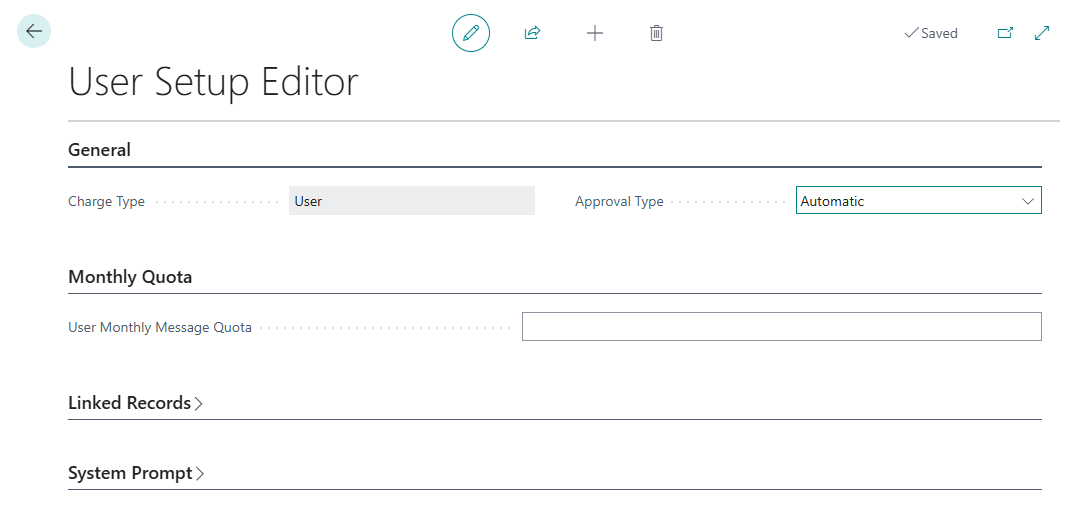
When an assistant calls as a named user, Bifröst records where the call comes from, and the user may have to approve that source once. In Bifrost User Setup, the Approval Type of each user decides whether new sources are accepted automatically (the default) or have to be approved first. Requiring approval is the safer choice when people may connect assistants you have not chosen. Open a user to change the Approval Type or to set a User Monthly Message Quota.