Bifröst Iceland DocEx
Send and receive electronic invoices from Business Central, and let your assistant do the routine work. Bifröst Iceland DocEx connects Business Central to the Advania and Unimaze document exchange networks. An assistant, an integration or a scheduled routine can send a posted sales invoice or credit memo as a Peppol BIS 3.0 e-invoice, bring received invoices in as incoming documents and turn them into purchase invoices or journal lines, and keep the delivery status of every sent document up to date.
Everything runs inside your own Business Central company, with your own permissions, and every call to a network is logged there.
An additional app on Bifröst Foundation, for companies in Iceland. New to Bifröst? Start with How Bifröst works.
What you can do
- Send posted invoices and credit memos. Send a posted sales invoice or credit memo as a Peppol BIS 3.0 e-invoice, with its PDF if you want. The posted document is marked as sent, and a document that has already been sent is not sent again by mistake: sending it again must be asked for on purpose.
- Follow what you sent. Bring the delivery status of sent invoices and credit memos into Business Central, so the posted document shows whether it was delivered. Read a document's history and validation results, or open it as the recipient sees it.
- Receive invoices as incoming documents. See the invoices and credit notes waiting for you, and bring each one into Business Central as an incoming document, with its PDF and other attached files. A document is brought in only once; then you confirm to the network that it was received.
- Turn received invoices into purchase documents or journal lines. The vendor is found by its kennitala, Peppol codes are translated into your own codes, lines are posted to the accounts you decide, and the total matches the amount the supplier asks to be paid. For each vendor you choose between a purchase invoice and general journal lines.
- Bring in paper, PDF and photographed invoices too. An invoice that arrives as a PDF, a scan or a photo goes into Business Central as an incoming document. Your assistant reads it and turns it into an e-invoice on the same incoming document, with the original file kept, so Business Central makes it a purchase invoice exactly like one received through a network. See Incoming documents from start to finish.
- Create e-invoice XML. Create Peppol BIS 3.0 XML (UBL) for invoices, credit notes, orders, despatch advices and statements, and keep it as an attachment on a document or as an incoming document.
- Answer the supplier. Tell a supplier through Unimaze that an invoice has been paid, or reject it with a reason and what the supplier should do.
- Check a recipient before you send. See whether a customer can receive e-invoices on the network, and which kinds of document.
- Use the Peppol code lists. Look up the Peppol BIS 3.0 reference data: countries, currencies, units, VAT categories, document types and electronic address schemes. No credentials are needed.
Capabilities
| Domain | Capabilities |
|---|---|
| Sales | Send posted sales invoices and credit memos as e-invoices, keep their delivery status on the posted documents, check that a customer can receive e-invoices |
| Purchase | Receive e-invoices and credit notes as incoming documents with their files, turn a PDF, scan or photo of an invoice into an e-invoice, create purchase invoices, credit memos or general journal lines from them, tell the supplier an invoice is paid or rejected |
| Integration | Electronic document exchange through Advania and Unimaze, Peppol BIS 3.0 e-invoices and reference data, UBL XML for invoices, credit notes, orders, despatch advices and statements |
Get it
Install Bifrost Iceland DocEx next to Bifröst Foundation, from AppSource or through your Business Central partner. It is for companies in Iceland. It needs Business Central 28.0 or later, Essentials or Premium, and Bifröst Foundation. For the price, contact your Business Central partner.
You also need an agreement with at least one document exchange network: Advania or Unimaze. The network gives you the user name and password (or API key) the app signs in with. The Peppol code lists need none.
Set it up
| Step | What | Who |
|---|---|---|
| 1 | Install Bifröst Foundation and complete its setup, then install Bifrost Iceland DocEx. | Business Central administrator |
| 2 | In the Bifrost Setup Wizard, allow outgoing HTTP requests for the app. Nothing reaches a network until HTTP requests are allowed. | Business Central administrator |
| 3 | Open Bifrost Setup and choose Document Exchange Setup in the Apps group. For each network you use, choose Test or Live, enter the credentials and choose Test Advania Connection or Test Unimaze Connection. | Business Central administrator |
| 4 | Make sure Registration No. on Company Information holds the company's kennitala, and VAT Registration No. its VAT number. The networks know the company by them. | Accountant or administrator |
| 5 | If you receive invoices: choose Update BII Data Exchange Definitions, give each vendor its kennitala in Registration No., and decide how lines are posted: Business Central's Text-to-Account Mapping, the VAT G/L Account Map and the BIS30 Code Map. Choose Incoming Doc. Posting Mode on vendors whose invoices should become journal lines. | Accountant or Business Central partner |
| 6 | Give the people and services that send or receive documents BIFROST Full ori. | Business Central administrator |
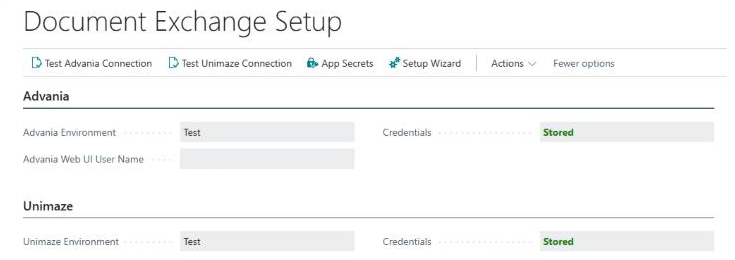
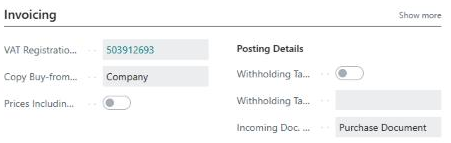
The help of each page has the details: Document Exchange Setup, BIS30 Code Map and Vendor VAT G/L Account Map.
Start with the network's Test environment and send a document from start to finish before you switch to Live.
Permissions
BIFROST Full ori gets the app's objects when the app is installed. The app also adds what its pages need
to Business Central's own permission sets: D365 Basic - Read, D365 Basic - Edit,
D365 BUS FULL ACCESS and General Ledger Journals - Edit.
Good to know
- It acts as you. Every call runs with the caller's own Business Central permissions and is logged on Bifrost Messages.
- Sending is real. On a Live environment a document goes to the recipient. A posted document that has already been sent, or is waiting for the recipient, is refused unless the request says on purpose that it should be sent again.
- Credentials stay in protected storage, per network and per environment, so a Test credential is never used for a Live call. A value is entered once in a masked dialog and never shown again; the setup page only says whether one is stored.
- Every call to a network is logged on the Bifrost Request Log, with the credentials masked, so a failed exchange can be traced.
- Moving from Origo Cloud Events DocEx? Install this app next to it. Your settings and mappings are copied, but credentials are not; enter them again on Document Exchange Setup.
- Message types. The operations this app adds are listed with all the others by the MCP tools
(
list_domains,describe_domains,describe_message_type) and on the Bifrost Message Types page, and each explains itself throughHelp.Implementation.Get.