Using Bifröst
Someone in your company has connected an AI assistant, such as Copilot or Claude, to Business Central, and told you that you can now ask it to do things. Bifröst is the part that turns your request into something Business Central does. This page is what that means for you.
Before you start
- Where to ask. In the AI assistant your company connected, for example Microsoft Copilot or Claude. Your administrator tells you which one, and how to open it.
- Connect once. Add Bifröst to your assistant and sign in with your work account; the steps are in For each user.
- The first time, Bifröst may give you a link to approve the assistant before it can act for you. Open it, or send it to your administrator. The assistant itself may also ask before it uses a Bifröst tool, as Claude does with Allow once: allow it when you recognise the request.
- A first question to try: "Who am I in Business Central?" The answer should be your own user and company. If the company is wrong, ask it to switch company; if the user is wrong, stop and tell your administrator.
What a conversation looks like
You: Post the sales order for Adatum from yesterday.
Assistant: I found sales order 1023 for Adatum Corporation, dated 17 September, 3 lines, ISK 412,500. Shall I show you what posting it would do first?
You: Yes, show me.
Assistant: Posting would create invoice lines for the 3 items, a customer entry of ISK 412,500 and the matching G/L and VAT entries. Shall I post it?
You: Yes.
Assistant: Posted. Invoice 103045 was created.
Here is a real answer, in Claude, to a question about stock:
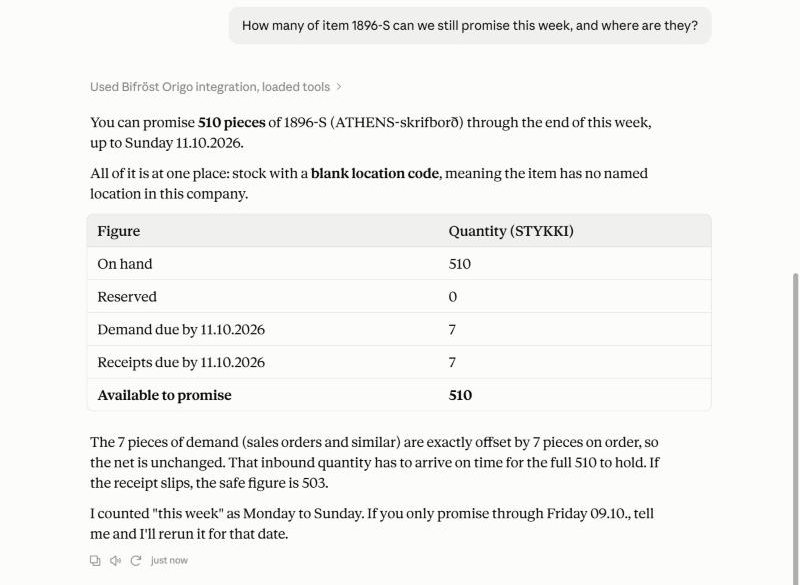
The figure of 510 counts on 7 units that are on order and due this week; the assistant says so, and gives the safe figure, 503, in case they arrive late.
Check it yourself. Ask for a link to the record, and open it in Business Central:
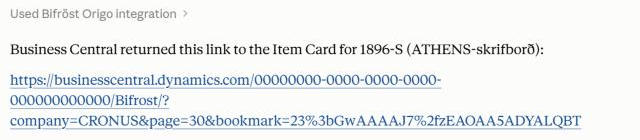
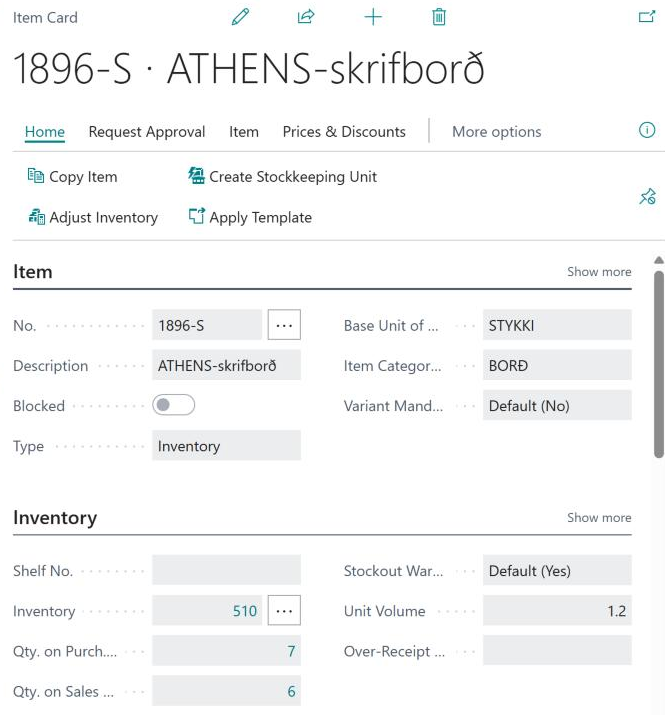
The link opens the page in Business Central with your own rights, so you see the same figures the answer was built from:
Behind a conversation like the one above, the assistant asked Bifröst which operations exist, read the instructions for posting a sales order, asked you the one thing it could not know, and then Business Central posted the order with the same checks, number series and entries as when you post it yourself.
What you can ask
The assistant does not need to be taught what is possible: it asks Bifröst for the list of things it can do in Business Central. That list grows with the apps your company has installed.
- You ask
- The assistant reads from Business Central, as you
- You get the answer. Nothing changes
- You ask
- The assistant proposes what it will do
- Say "show me first" to see what posting would do
- You say yes (most assistants ask first; if yours does not, tell it to)
- Business Central does it, with your rights, and logs it
- Look something up. "What is Adatum's balance?" · "Is item 1896-S in stock?" · "Which sales orders are past their shipment date?" These only read.
- Do one thing. "Release order 1023." · "Post the purchase invoice from Fabrikam." Assistants usually ask before they change anything; if yours does not, tell it to. For posting, it can show you first what posting would do. Other changes, such as turning a quote into an order, happen when you say yes, so ask what it will do first.
- Do a sequence. "Create a sales invoice for the September hours on the Adatum project and send it." Several operations in a row, the result of one feeding the next. If a step fails, the assistant can tell you which one and why.
- Use what other apps add. Each Bifröst app your company installs adds operations of its own, and the assistant can combine them in the same conversation; see the app list.
- Ask what is possible. "What can you do with purchase orders?" The assistant looks it up in Bifröst and tells you.
Check what the assistant did
- Open the record. Ask for a link to it, and open it in Business Central, as above.
- See every call. Every call an assistant makes for you is kept on Bifrost Messages (Bifrost Setup › Messages › Bifrost Messages), where you see your own calls. If you cannot open Bifrost Setup, ask your administrator. Each line is one call: what was done, whether it succeeded, and which tool called. Select a line to see its request and answer. If a call failed, its answer says what went wrong in plain words.
What the assistant remembers
Assistants forget everything between chats. Bifröst gives them a memory in Business Central that they can read the next time:
- Company memory, shared by everyone in the company: conventions such as Our fiscal year starts on 1 July.
- User memory, only yours: how you like things, such as Show amounts without decimals.
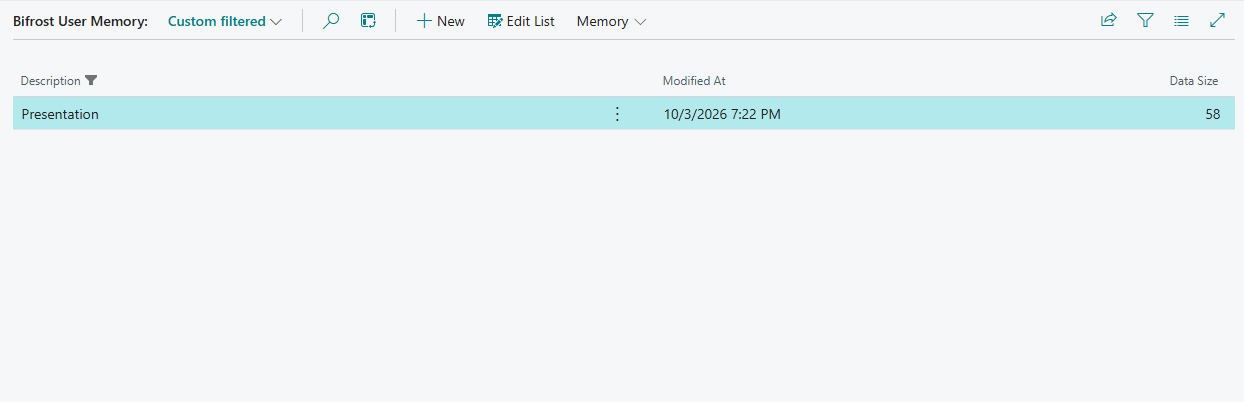
Ask the assistant to remember something ("Remember that our fiscal year starts on 1 July"), or to forget it. You see the memories in Business Central on Bifrost Setup › Related › Memory.
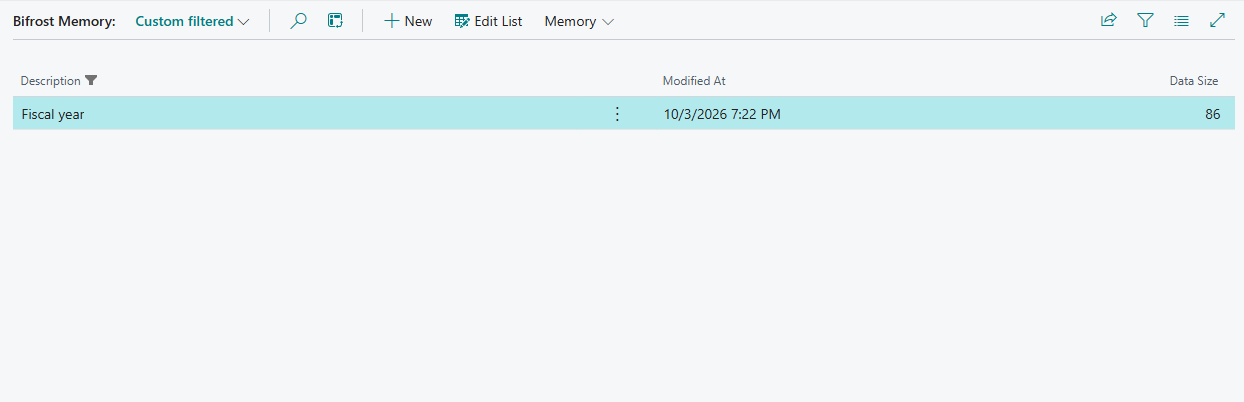
Changing the company memory needs a permission your administrator gives (BIFROST CoMem ori). Do not put
passwords or personal data in a memory: everyone in the company can read the company memory.
Approving a new assistant
Your company may require that each new assistant or tool is approved once before it can act for you. The first time you use it, the assistant then gives you a link. Open it in Business Central and approve the tool, or send the link to your administrator. After that it works as usual.
Who can use it
Anyone whose Business Central user has been given the Bifröst permissions by an administrator. The assistant then works with exactly that user's rights. There is no separate Bifröst login and nothing to install; you only add Bifröst to your assistant once. If the assistant cannot reach Business Central at all, ask your administrator. Your administrator helps you first; your company's Business Central partner supports Bifröst.
What it will not do
- Anything you are not allowed to do. The assistant acts as you, with your permissions. If you cannot post invoices in Business Central, neither can it.
- Work around Business Central. Posting rules, validations and the audit trail apply as they do in the Business Central client.
- Return fields your administrator has restricted for Bifröst. The answer then simply leaves them out.
- Act for you from an assistant nobody has approved, if your company requires approval. A new assistant then has to be approved once before it can act as you.
It can really post, send and delete, with your rights. The assistant is still software that can misunderstand you: say "show me first", and read what it proposes before you say yes.
When it says no
| The assistant says | What it means | Who to ask |
|---|---|---|
| It has no Business Central tools, or answers as if Bifröst were not there | The Bifröst connector is not switched on in this chat. Switch it on (in Claude: +, then Connectors) and ask again. | You |
| The operation is not available | The app that provides it is not installed, it is not fully set up, or it needs a permission you do not have. | Your administrator |
| It cannot do that yet | There is no operation for that task in the apps you have. It is not a fault: another app may have it, or it can be built; see Missing something?. | Your administrator or partner |
| You do not have permission | You do not have that permission in Business Central, and the assistant has exactly your rights. | Your administrator |
| Posting is refused, although you can post in Business Central | Posting through an assistant needs its own permission, which your administrator gives separately. Showing what posting would do needs it too. Until then, post it yourself in Business Central. | Your administrator |
| Part of the answer is missing | Those fields are restricted for you. | Your administrator, if you need them |
| The tool must be approved first, with a link | Your company requires new assistants to be approved once. Open the link, or send it to your administrator. | You, or your administrator |
| The allowance is used up | A limit is reached: your own or the company's monthly limit (it starts again on the 1st of next month), the messages your company has bought, or, in a sandbox, the daily limit. | Your administrator |
| Bifröst refuses calls for the company | The setup wizard has not been finished in this company, or the trial is not active yet. | Your administrator |
| Something was posted that should not have been | The assistant did what it was asked, with your rights. Reverse it in Business Central as you would any posting and tell your administrator; every request and answer is logged, so it can be traced. | Your administrator |
If the assistant fails with what looks like a technical error, ask it to show you the error text. Bifröst's answer says what went wrong in plain words. Send that text, with the time, to your administrator: they can find the call on the Bifrost Messages page in Business Central. (Administrators: the causes and fixes for each row above are in Troubleshooting.)
Good habits
- Start each chat with the Connection Prompt your administrator gives you, and check the company in the first answer.
- Say "show me first" before anything that posts, sends or deletes.
- Ask for links and open the records when the answer matters.
- Keep chats to one task: a long chat makes it easier for the assistant to mix things up.
- Tell your administrator when the assistant does something unexpected. Bifrost Messages shows exactly what happened.
Next
- How Bifröst works: the ideas behind it