Running Bifröst: for administrators
Set it up walks through the first setup. This page is what to weigh when you make those
choices, and what to keep an eye on afterwards. Everything here is on Bifrost Setup and needs
BIFROST Full ori; licensing actions also need BIFROST LicAdm ori. Every Bifröst page in Business Central is described
in the in-product help.
Permissions
An AI agent can do at most what the identity it runs as can do in Business Central, and often less. Bifröst never gives a caller more than Business Central already allows, apart from reading the change log entries and some setup (which, and why), and Field Access, the ChangeLog Write Guard and the posting permission sets can narrow it further.
Sigga asks her assistant: "Post the sales invoice for Adatum." Before Business Central posts anything, Bifröst checks:
- May Sigga use Bifröst at all?She has the BIFROST API ori permission setIf not: The call is refused
- May Sigga do this in Business Central?Her ordinary Business Central permissions allow posting sales invoicesIf not: Refused: she does not have that permission
- May she post through Bifröst?She has the posting gate BIFROST GL Post ori, which covers sales and purchase documents as well as general journalsIf not: Refused: posting, and a posting preview, need that permission set. Reading and preparing still work
- Keep each identity as narrow as its job. Give each level of trust its own identity: a user or app that may only read cannot post, however it is asked.
- Every set, and how the gates work, is in Permission sets and gates.
Users and agents
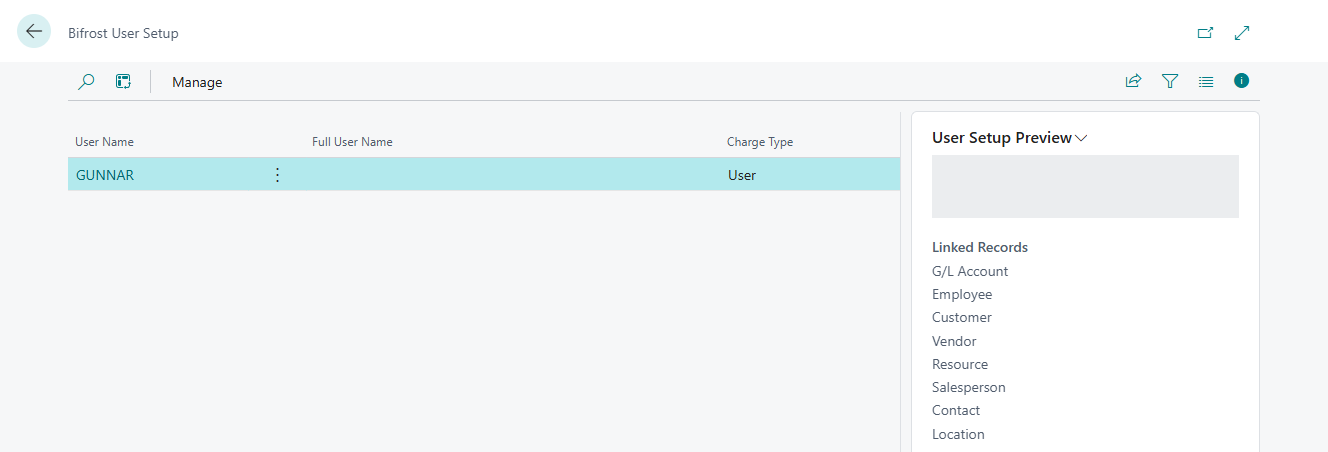
Setup › User Setup lists every user of Bifröst in the company. Open a user to set:
- Approval Type: whether a new agent or tool must be approved once before it can act for the user (see Decide which tools may act for a user).
- User Monthly Message Quota: the user's monthly limit.
- Charge Type (read-only): how the user's messages are counted. User for people, App Registration for integrations.
What agents may see and change
Field Access (Setup › Field Access) keeps chosen fields from one user or app through Bifröst, for example employees' bank account numbers; nothing changes in the Business Central client. The ChangeLog Write Guard on Bifrost Setup decides whether changes through Bifröst must leave a change-log trail. If you use Bifröst with bookkeeping, decide it with that in mind: your bookkeeping obligations stay yours, and Bifröst's logs do not replace your own records.
The kinds of Field Access row, the guard's settings and its default, sensitive fields, the common block every change, then open one table setup and the data Bifröst always protects: Control what agents read and change.
Logs and retention
These logs live in your own Business Central. They are company data: include them in your own rules for retention and access.
-
Bifrost Messages (Messages › Bifrost Messages) keeps every call Bifröst receives, with the request, the response and the caller, so it holds whatever data those calls returned.
-
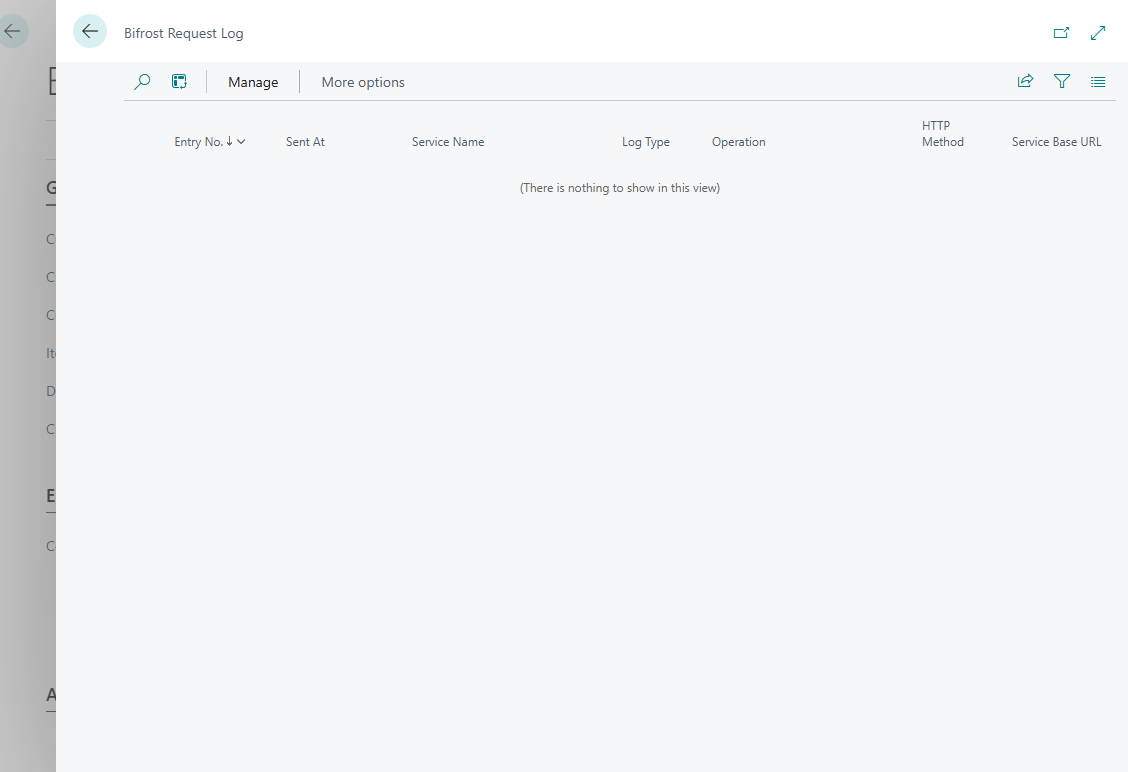
Request Log (Messages › Request Log) keeps the calls Bifröst apps make to other systems, masked unless debug mode is on. It is given a one-month retention policy automatically.
-
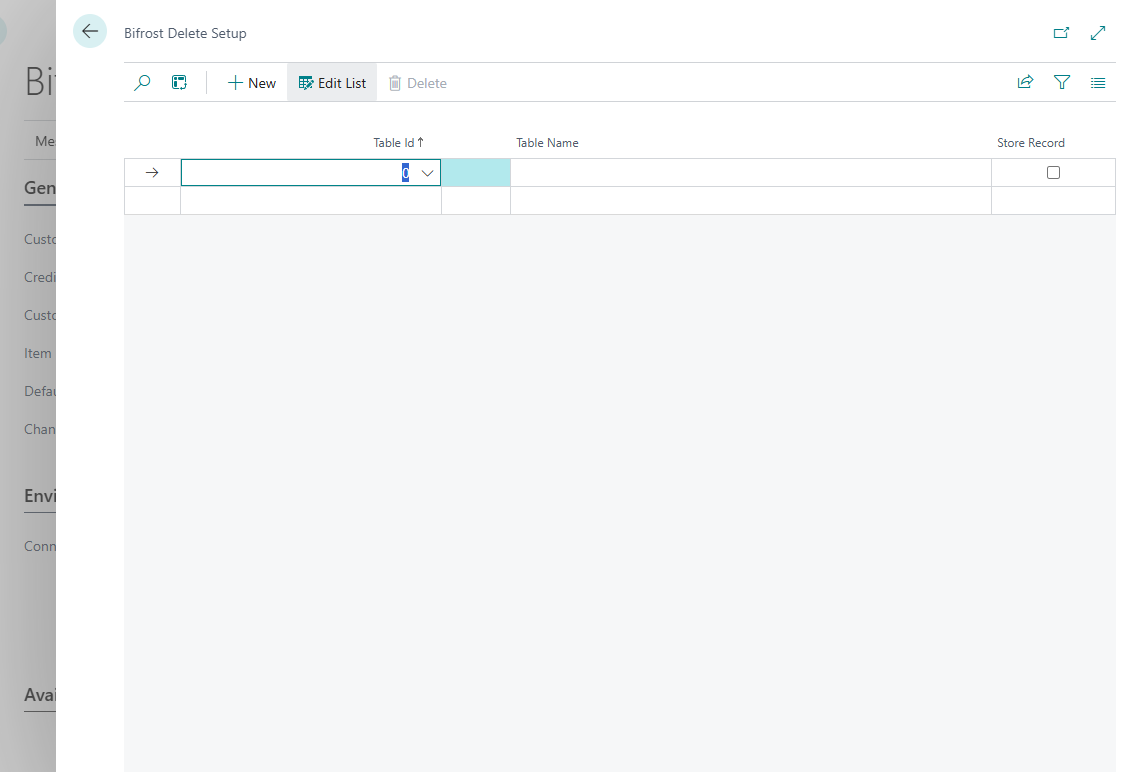
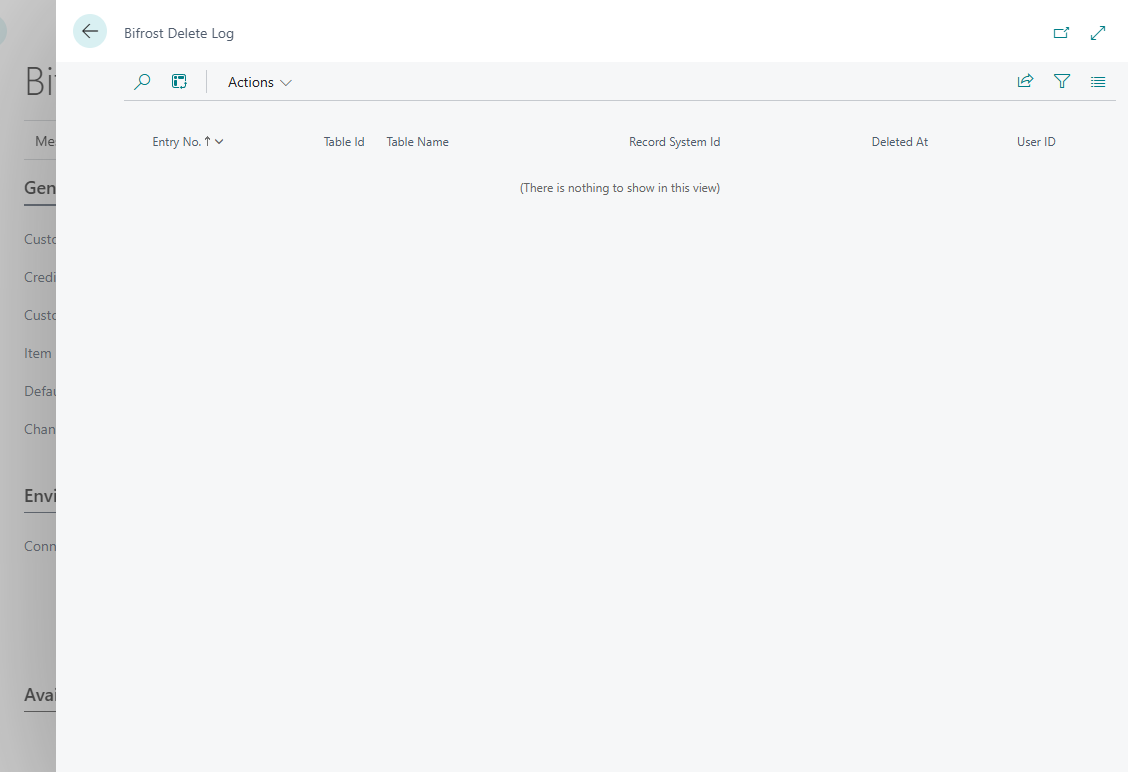
Delete logging (Actions › Delete Logging) records deletions in the tables you list on Delete Setup, whoever deletes them. Store Record keeps a copy of each deleted record; the deletions are on Delete Log.
-
Memory and user setup hold free text that agents and users write.
Request Debug Mode (under Show more on Bifrost Setup) stores full, unmasked request and response bodies in the
request log. Turn it on only while troubleshooting, and off again afterwards. Changing it needs BIFROST ReqLgAdm ori.
- Retention is yours to set. Use Setup › Retention Policies. Bifrost Messages has no retention period until you set one, so messages are kept until you do.
- Keep at least 31 days of Bifrost Messages if you use monthly message quotas.
- Access is yours to set. Anyone with
BIFROST Full ori(or SUPER) can open every message on Bifrost Messages. A holder ofBIFROST Read orisees only their own messages. GiveBIFROST Full orionly to the people who need it.
Secrets
Setup › Secrets lists the credentials that Bifröst apps need, such as an access key for another system: which app, what it is, whether it is set, and when and by whom. Use Set... to enter a value and Clear to remove it. Values are stored for the company (or the company and user), never shown again, and never copied between companies.
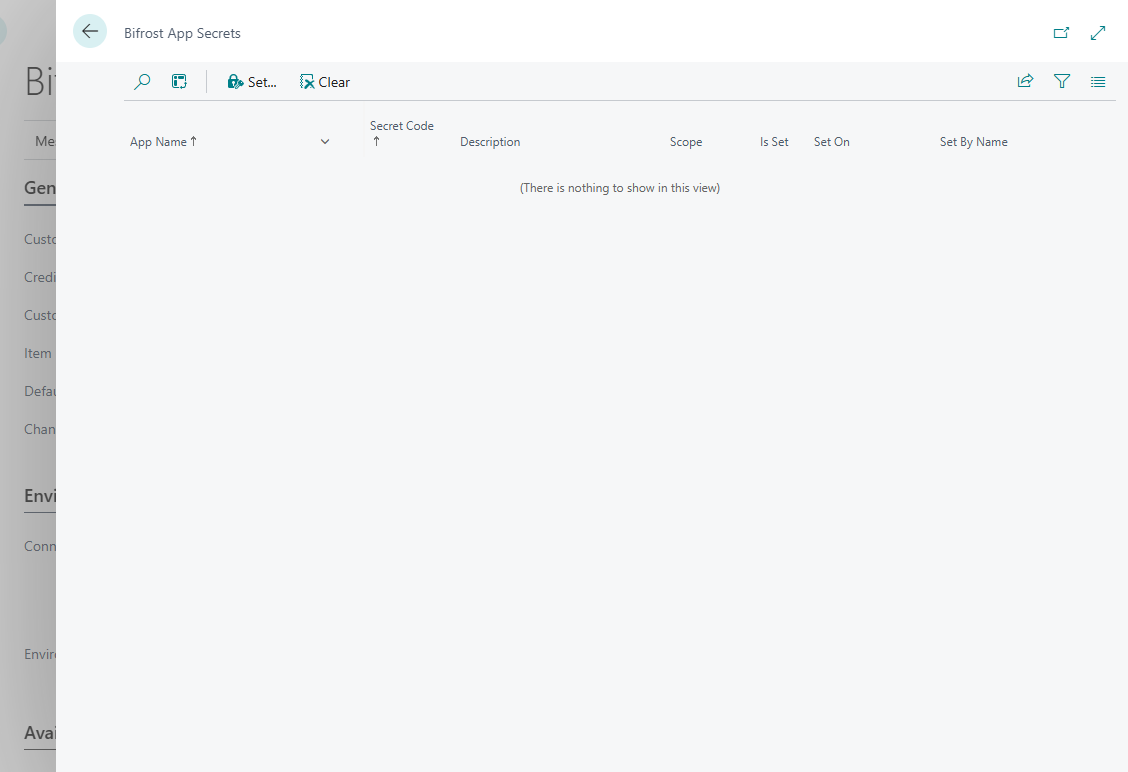
The list fills when you install Bifröst apps that connect to other systems. On-premises, the setup wizard asks for their secrets in one optional step. Online, set them on Setup › Secrets.
The other settings on Bifrost Setup
Choose Show more in the General section for the less common settings. Every field is described in Bifrost Setup.
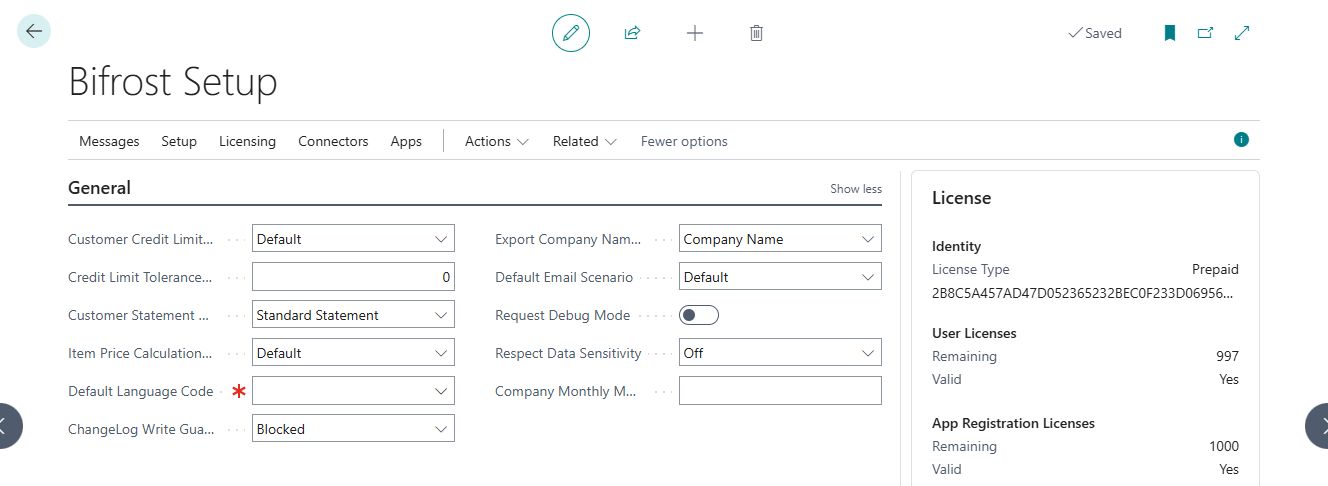
| Setting | What it does |
|---|---|
| Customer Credit Limit Type | Which credit limit check agents use for customers |
| Credit Limit Tolerance % | How far over the credit limit a customer may go before it is flagged |
| Customer Statement Type | Which customer statement agents produce |
| Item Price Calculation Type | How item prices are calculated in answers |
| Default Language Code | The language of answers when a call does not ask for one |
| ChangeLog Write Guard | What agents may see and change |
| Export Company Name Type | Which company name goes into exports: the company name or its display name |
| Default Email Scenario | Which email account Bifröst uses when a call does not say |
| Request Debug Mode | Logs and retention |
| Respect Data Sensitivity | What agents may see and change |
| Company Monthly Message Quota | Usage and limits |
Translations and integrations
Under Related:
- Bifrost Translations: translation entries that external systems read: for a source, a language and an English text, the translated text.
- Bifrost Integration: an event log of integration activity: for each event, the source system, the Business Central table and the time. Use it to see which system wrote to which table and when.
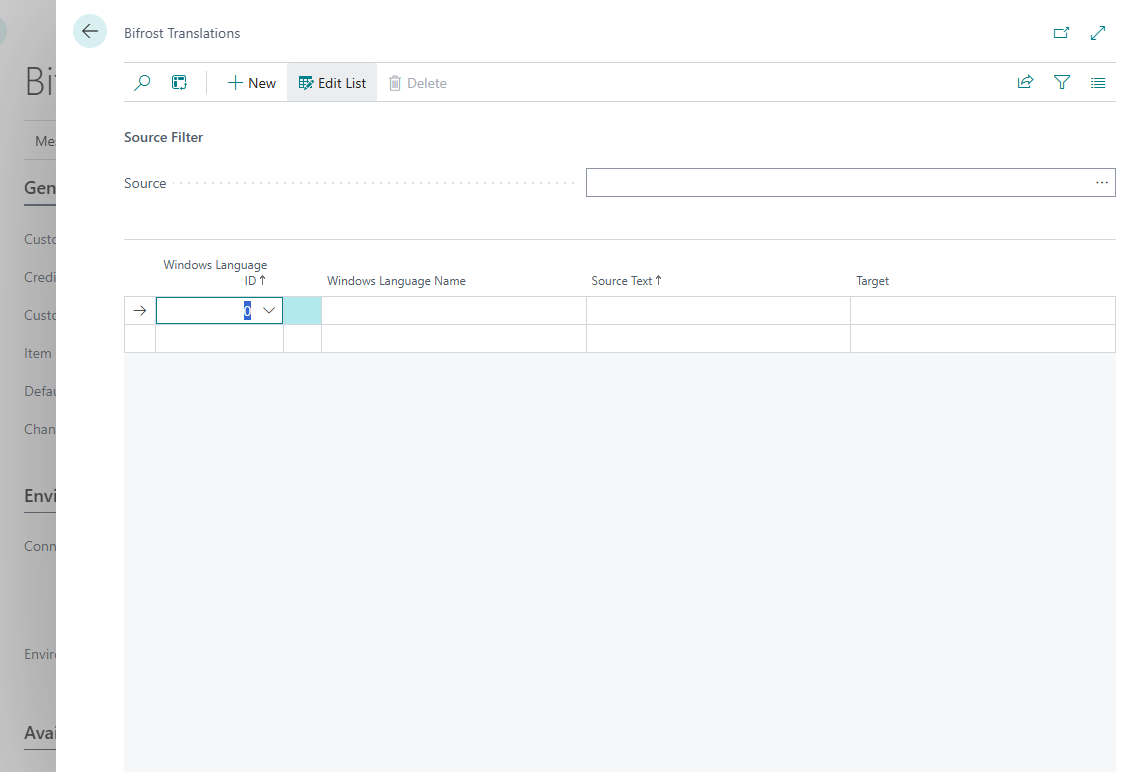
Both are filled by integrations; you normally only look at them.
Other Bifröst apps
Each Bifröst app adds capabilities of its own. Once installed, each adds an action to the Apps group on Bifrost Setup, which opens its own setup page. Apps › Find Apps opens the list of apps.
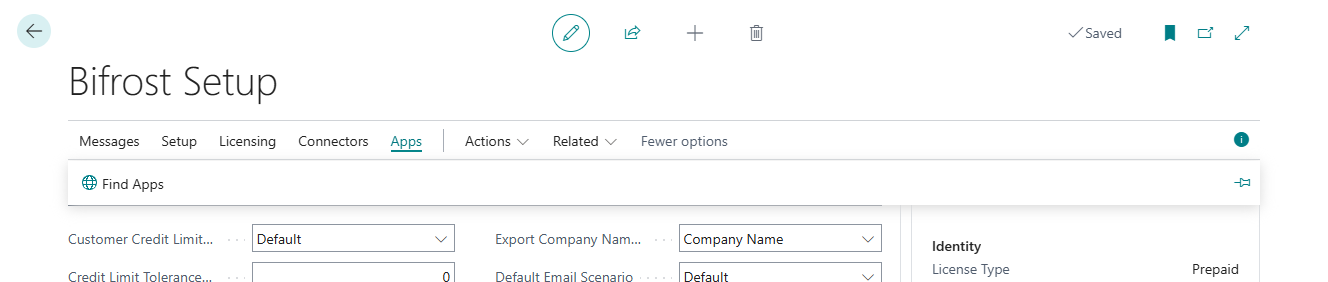
After installing an app, run the setup wizard again (Licensing › Setup Wizard). It shows whether outbound HTTP is on for the new app (choose Enable HTTP for all apps in step 2), and on-premises it asks for the credentials. Online, enter them on Setup › Secrets.
The license agreement and the wizard
Licensing › Setup Wizard can be run again at any time, for example to read the Bifröst MCP server address or the consent link in wizard step 5. Close it with X if you do not want to finish it again.
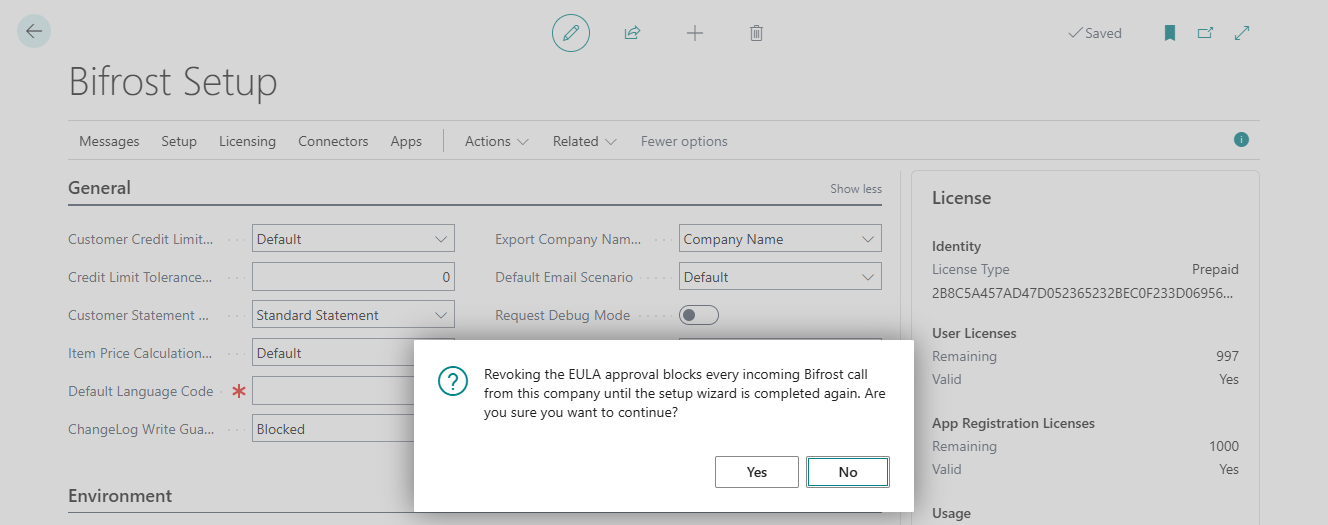
Licensing › Revoke EULA Approval withdraws the company's approval of the Terms of Use. Every Bifröst call from the company is then refused until the setup wizard is completed again. Business Central asks before it does it.
Usage and limits
Bifröst counts messages: one for each successful call that does work. The help, memory, session, webhook and change-log calls of Bifröst are not counted.
- Limits you can set. A monthly message quota per company and per user stops usage at a level you choose.
The fields, what
0means and what happens when a quota is reached: Monthly quotas. - See what is used on Actions › License Usage, per company, day and type. Licensing › Sync refreshes the figures at once; a background task does the same every day.
How licensing works, and what happens when a quota runs out: Licensing. Prices: Price.
Keep an eye on it
- Monthly: look at License Usage and the License pane on Bifrost Setup; check that no limit is close.
- When people change roles: adjust their permission sets and Field Access rows.
- When you install a Bifröst app: run the setup wizard again.
- Now and then: look through Bifrost Messages for calls you did not expect, and check that Request Debug Mode is off.
- Once: set retention periods, and decide who may read the logs.
Troubleshooting
This is the one place to look when something is refused. The rows follow what users report, in the words of When it says no; the last rows are what you see yourself. To find a call, open Bifrost Messages and filter on the user and the time.
| What you hear or see | Why | What to do |
|---|---|---|
| The assistant has no Business Central tools at all | The Bifröst connector is not switched on in that chat | The user switches it on; see Connect your assistant |
| No environments or companies appear when the assistant connects | The one-time consent for the Origo Bifrost enterprise application in your Microsoft Entra ID is missing | Step 3: Consent once for your organisation |
| Adding the connector does not find the sign-in options, or sign-in fails | The Bifröst MCP server address is wrong, or the sign-in itself fails | Check the address from wizard step 5. If it is right, contact your Business Central partner and pass on the exact error |
| Who am I? answers with another user | The user signed in to the connector with another account | In the connector, the user chooses Disconnect, then connects again with their Business Central account |
| The tool must be approved first, with a link | The user's Approval Type requires each new tool (session source) to be approved once | The user opens the link and approves it (with BIFROST SrcApOwn ori), or sends it to you and you approve it on the same page (with BIFROST SrcApAdm ori); see Approve Session Source. The setting: Decide which tools may act for a user |
| The operation is not available | The app that provides it is not installed in this company, a secret it needs is not set, or it is switched off for this user: Bifröst offers an operation only to a user with the permissions it needs | Install the app from the list of apps and run the setup wizard again; set the secret on Setup › Secrets; check the user's permission sets (Permission sets and gates) |
| It cannot do that yet | No installed app has an operation for that task | Look in the list of apps, or see Missing something? |
| It cannot call Bifröst at all | The user has no BIFROST API ori | Assign it; see Assign and check |
| Posting denied: missing '...' permission set | The user lacks the posting gate it names | Assign that set; see Which gate opens what |
| You do not have the following permissions on ... | The user lacks the Business Central permission itself | Assign the ordinary Business Central permission set, as for the client |
| Approval requests cannot be sent | The user has no BIFROST ApprAdm ori | Assign it |
| Part of the answer is missing | A Field Access row that hides the field from the user, a field hidden by default, or Respect Data Sensitivity | Check the user's rows on Bifrost Field Access Overview; see Field Access and Sensitive fields |
| The field is blocked by the ChangeLog Write Guard | The change log does not log changes to the field | Log the field in Change Log Setup, add a guard exception, or give the user a row that skips the guard; see The ChangeLog Write Guard |
| The field is write-restricted or not permitted | A Field Access row that closes the field, a default protection, or data Bifröst always protects | Check the user's rows on Bifrost Field Access Overview; see Field Access and Sensitive fields |
| The field belongs to the company configuration | One of the company configuration fields | Set up the company as a user with BIFROST Force ori, and ask the agent to force the change |
| The table cannot be read or changed | One of the tables Bifröst always protects, or the user has no permission to it in Business Central | Use the Business Central page instead, or give the permission |
| Bifröst refuses calls for the company | The setup wizard has not been finished in this company, or the license agreement was revoked | Run the setup wizard (Licensing › Setup Wizard) and choose Finish; see Run the setup wizard |
| Bifrost trial has not been started | Online in production, the trial starts when the setup wizard is finished | Finish the setup wizard, or choose Licensing › Sync; see Prepaid |
| The allowance is used up | The user's or the company's monthly message quota is reached | Raise the quota, or wait for the next calendar month; see Monthly quotas |
| Calls are refused, and the License pane shows no messages left | The prepaid messages are used up | Contact your Business Central partner; see Prepaid |
| In a sandbox, calls are refused after many calls in one day | The sandbox rate limit on the Bifröst MCP server | See Rate limits |
| Answers carry a warning about the quota, or Bifrost Setup says the license quota is running low | A monthly quota or a prepaid pool is close to its end | Look at the License pane and License Usage; see Monthly quotas and Prepaid |
| Something was posted that should not have been, or a call failed with a technical error | - | Find the call on Bifrost Messages: the request, the answer and the caller. A failed call's answer says what went wrong |
| The License pane looks out of date | - | Licensing › Sync, then Licensing › Connection Status |
| A new Bifröst app does not work | Outbound HTTP is off for it, or its secrets are not set | Run the setup wizard again; check Setup › Secrets |
What you are responsible for
In short, and as set out in the Terms of Use:
- Permissions: who can call, and what each identity can reach and post.
- The assistants and systems you connect, and your agreements with their providers.
- What agents do under your identities: review and supervise their actions, and require confirmation where an action matters.
- What is kept: retention and access for the logs in your Business Central. What Bifröst stores with Origo is in Privacy.
- Bookkeeping: traceability and retention under bookkeeping law remain yours.
Next: Control what agents read and change, or Try it out to test a change in a sandbox first.