Control what agents read and change
This page is for the administrator who decides which data an AI agent or an integration may read and change through Bifröst. After reading it you can set the ChangeLog Write Guard, use Field Access for single users, protect sensitive fields, and you know which data Bifröst always protects. Who may call Bifröst at all, and who may post, is decided by permission sets: see Permission sets and gates.
Everything here is reached from Bifrost Setup and needs BIFROST Full ori.
How the protections fit together
An agent always works as a Business Central user, and an integration as a Microsoft Entra application. Every request passes these checks, and the strictest one wins:
| Check | Set up on | Applies to |
|---|---|---|
| The user's Business Central permissions | Users, Microsoft Entra Applications | Everything, as in the client |
| Bifröst permission sets and gates | The same pages (Permission sets and gates) | Calling Bifröst at all, posting, approvals and the other gated actions |
| Data Bifröst always protects | Nothing: it is built in (below) | Every user |
| Default protections | Built in, opened per user with Field Access (below) | Every user until opened |
| Field Access | Setup › Field Access (below) | One user or application |
| ChangeLog Write Guard | Bifrost Setup (below) | Changes to fields, so that each one is traced in the change log |
None of these settings changes anything in the Business Central client.
The ChangeLog Write Guard
The guard makes sure that a field an agent changes is traced in Business Central's change log. It applies when an agent changes the fields of a record, and when it restores an earlier value from the change log.
The setting
ChangeLog Write Guard is on Bifrost Setup, in the General section. Respect Data Sensitivity (below) is under Show more.
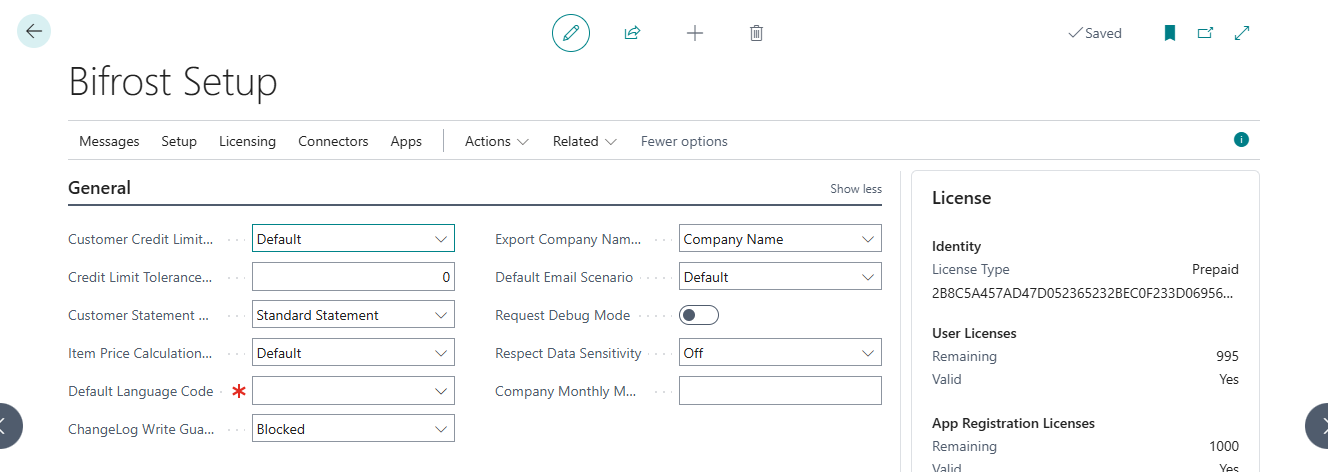
| Setting | An agent may change a field when |
|---|---|
| Blocked (the default) | the change log is active and logs changes to the field, or a guard exception covers the field, or the user has a Bypass row for it |
| Via force | as Blocked; and in addition the caller asks to force the change and holds BIFROST Force ori |
| Open | always: no check. Choose it only if you accept changes without a trail |
In every setting, a forced change by a holder of BIFROST Force ori passes the guard for the company configuration
tables; see Company configuration fields.
Change Log Setup
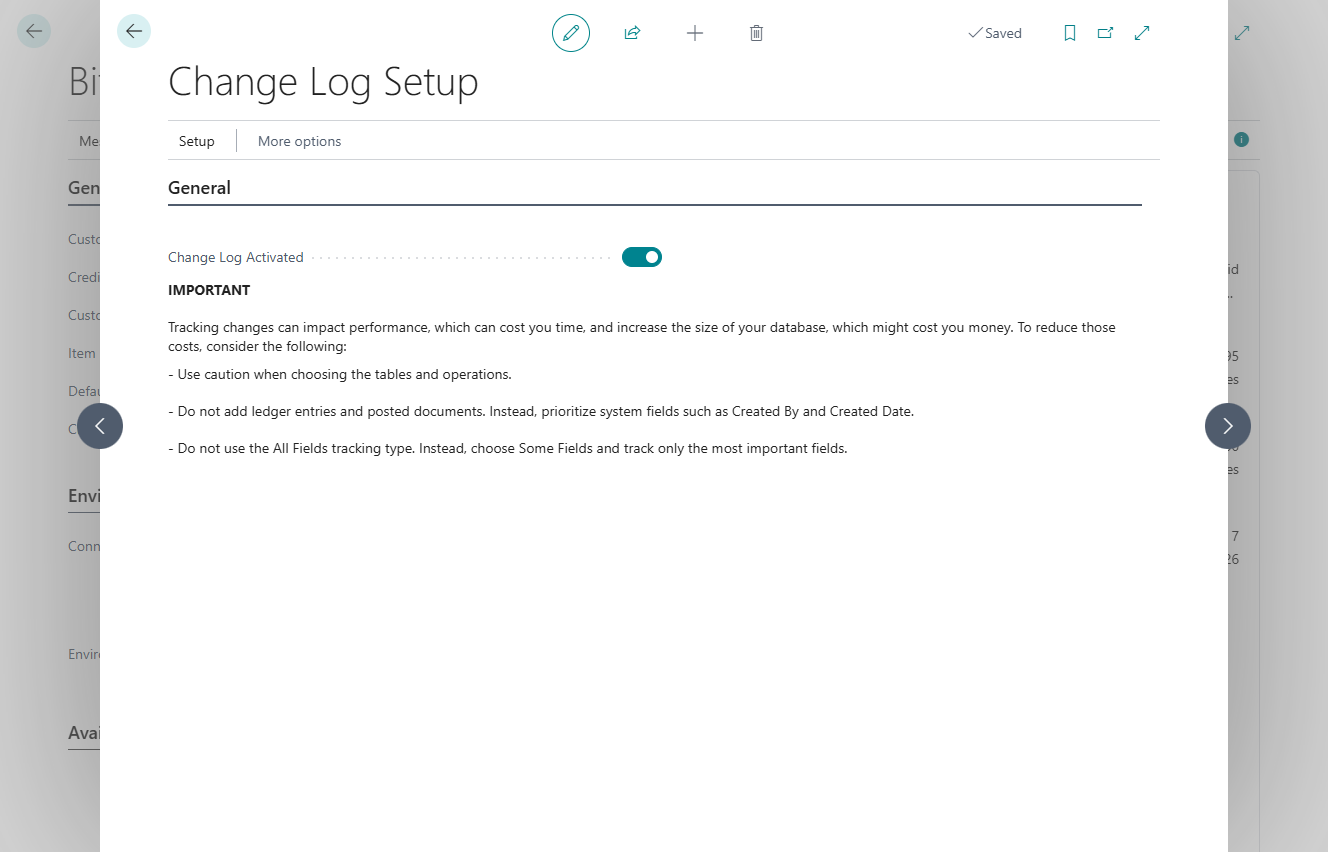
Choose Setup › Change Log Setup on Bifrost Setup. It opens Business Central's own page.
-
Turn on Change Log Activated. Business Central applies it to sessions started afterwards.
-
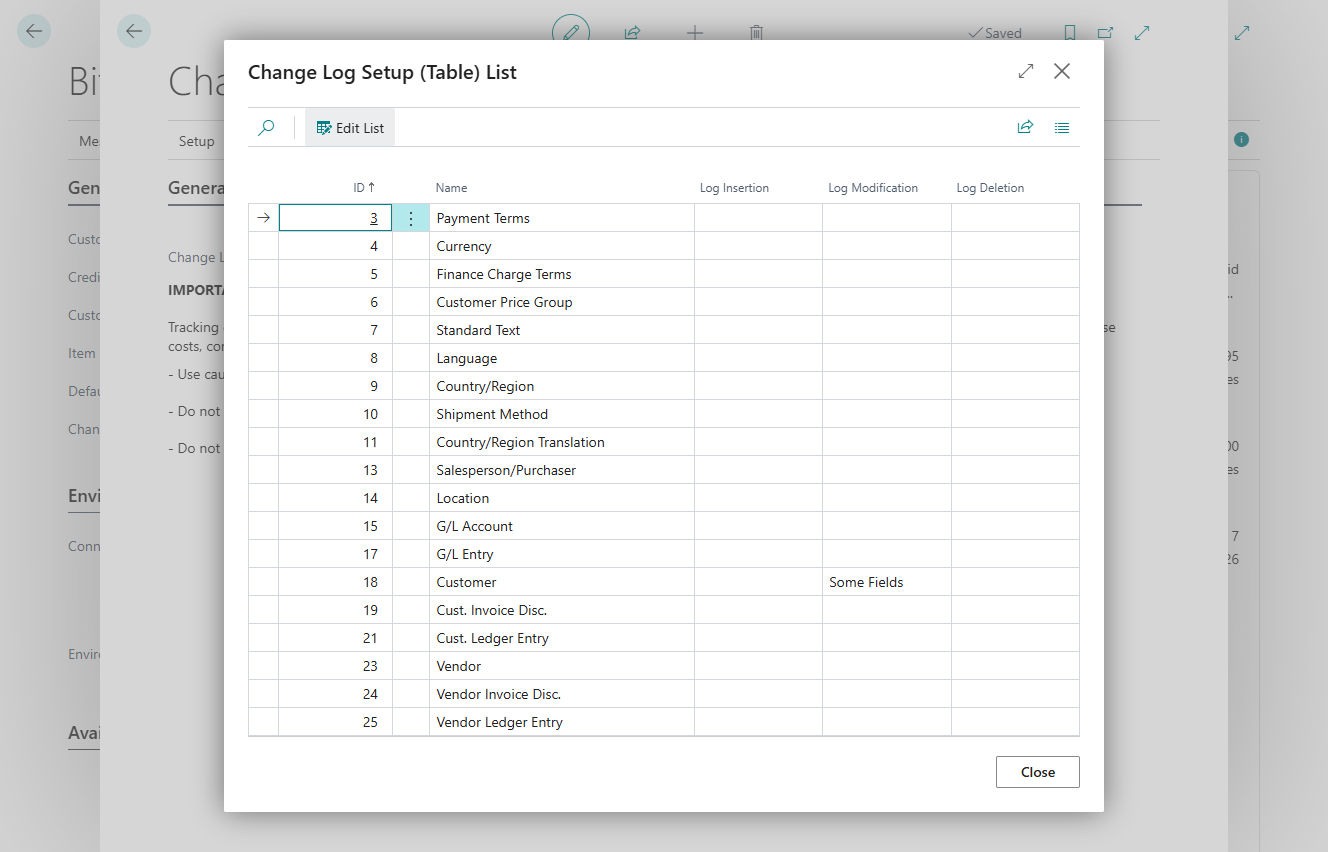
Choose Setup › Tables and find the table. In Log Modification, choose All Fields to cover every field of the table, or Some Fields to pick fields.
-
With Some Fields, open the field list (the ... in Log Modification) and tick Log Modification for each field agents may change.
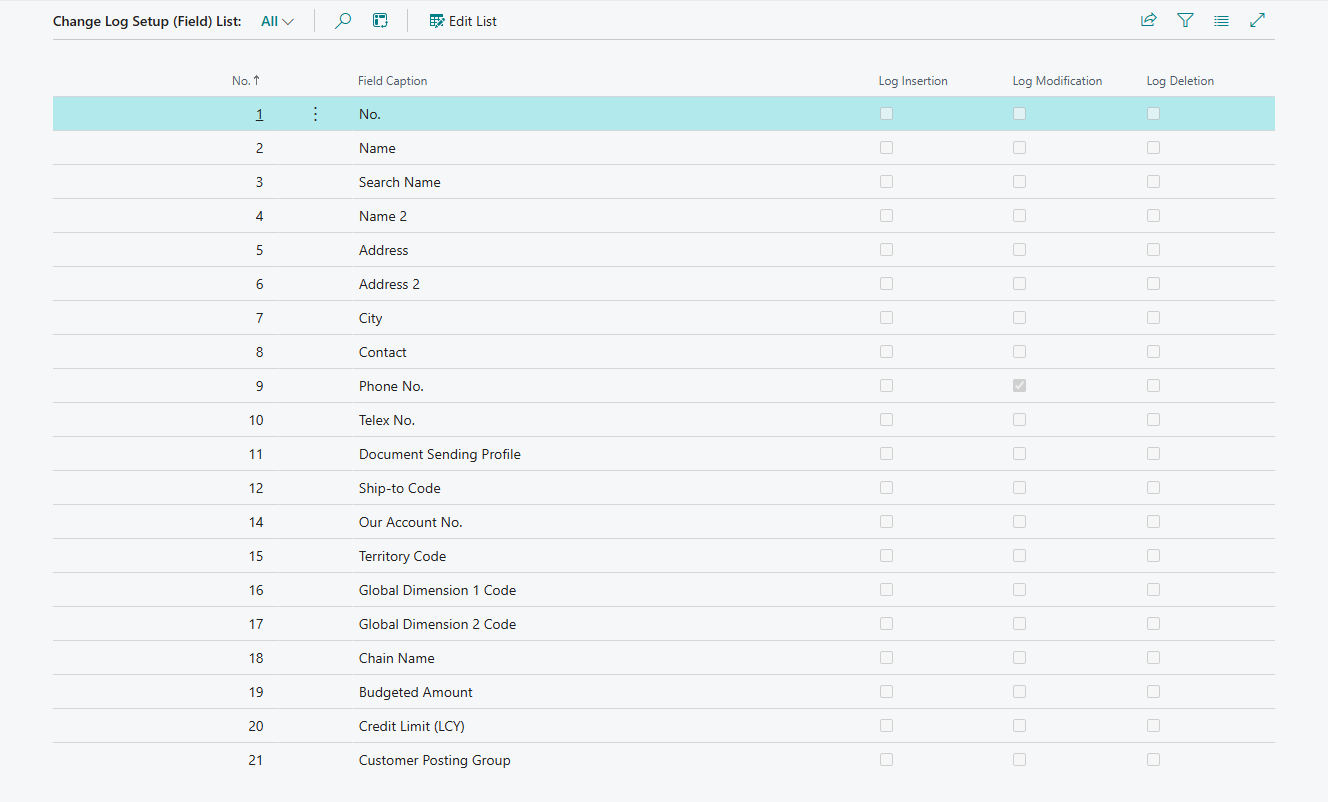
Only Log Modification counts for the guard.
Guard exceptions
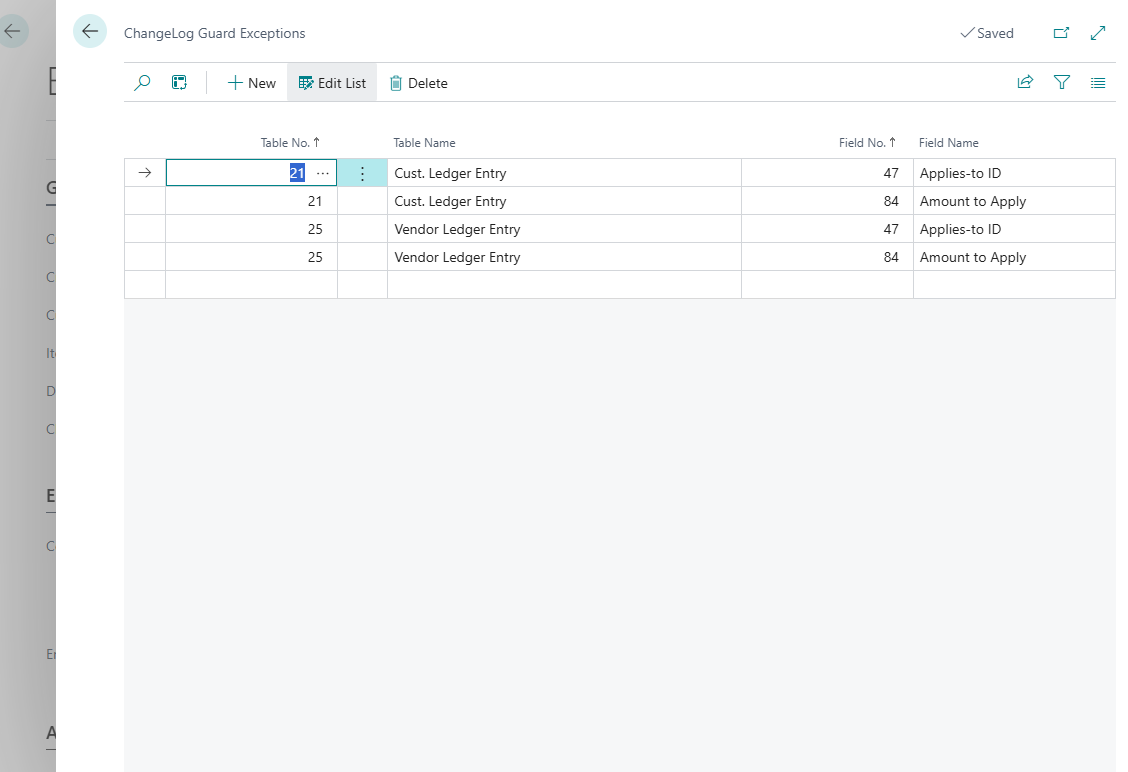
Setup › ChangeLog Guard Exceptions lists fields that may be changed without the change log, for every user. Bifröst adds four when it is installed: Applies-to ID and Amount to Apply on customer and vendor ledger entries, which applying payments needs. Add a field here only when every user may change it untraced.
Bypass for one user
A Bypass row in Field Access (below) lets that user or application only change the field (or every field of the table, or of every table) without the change log. It restricts nothing. Use it for an integration that must keep a field up to date when you do not want its changes in the change log. For everyone else, the guard stays as it is.
Field Access
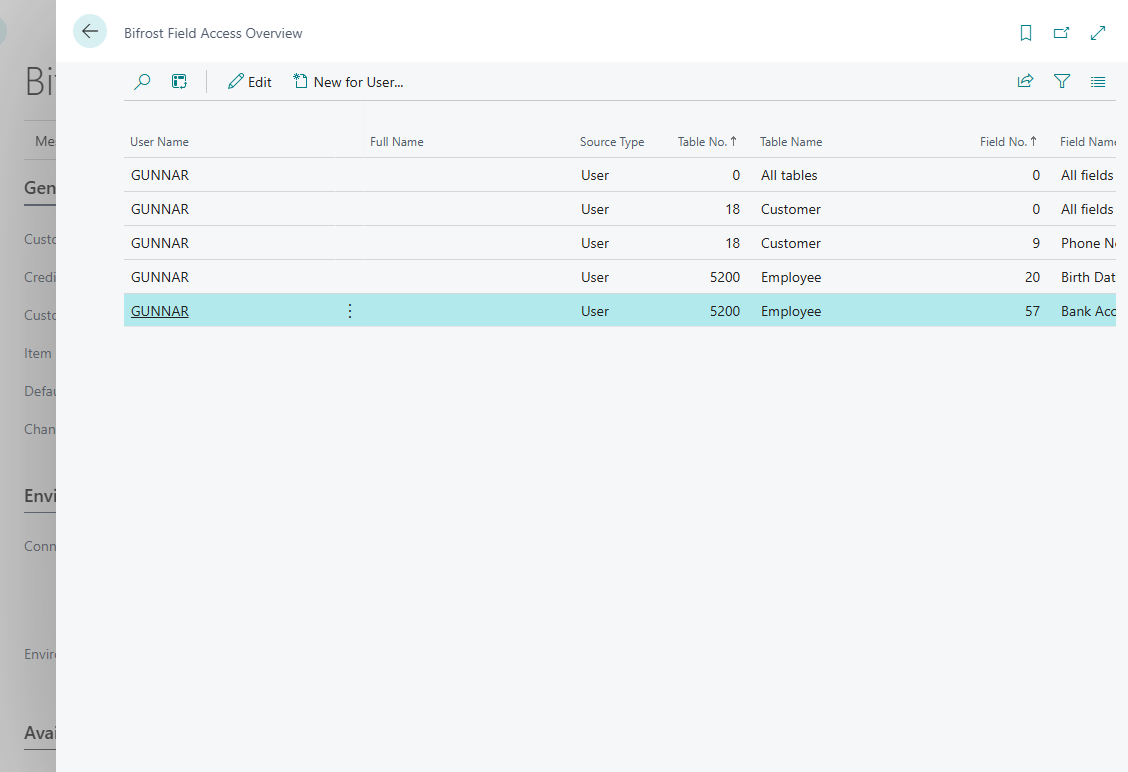
Setup › Field Access on Bifrost Setup opens Bifrost Field Access Overview: every Field Access row of every user and application in the company. Choose New for User... to add rows for a user, or Edit to change the rows of the selected user. Rows take effect at once. Details: Bifrost Field Accesses.
An example. Sigga uses an assistant, but agents should never see employees' bank account numbers. Choose New for User..., pick Sigga's user, then add the table Employee, the field Bank Account No. and the restriction Both. From then on, when her assistant lists employees, the answer comes without bank account numbers, and the assistant cannot change them. Sigga herself still sees them in Business Central.
A row names a user (or application), a table and a field. Table No. 0 means all tables, and Field No. 0 means all fields of the table. When several rows could apply, the most specific row wins: the row for the field, then the row for the table, then the row for all tables. Only that one row is used.
| Restriction Type | Read | Change | ChangeLog Write Guard |
|---|---|---|---|
| Both | No | No | - |
| Read | No | Yes | Applies |
| Write | Yes | No | - |
| None | Yes | Yes | Applies |
| Bypass | Yes | Yes | Skipped for this user |
None and Bypass also open the default protections of Sensitive fields for the user: None opens default-hidden and default-closed fields, Bypass opens default-closed fields for changes. Neither opens the data Bifröst always protects.
Apply Recommended Template... (on Bifrost Field Accesses, the page Edit and New for User... open) adds Read rows for the users you choose on phone numbers, e-mail addresses, registration numbers (the kennitala in Iceland) and bank details of customers, vendors, contacts, sales documents and bank accounts. It never changes a row that exists, and it leaves alone a user who has a row for a whole table or for all tables. It is safe to run again, for example for new users.
Field Access applies to everything Bifröst reads and writes field by field: reading records, changing records, creating documents and journal lines, restoring from the change log. Posting, approvals and the other gated actions are controlled by the permission sets (Permission sets and gates).
Block every change for a user, then open what they need
A common request: the agent may read, but may change nothing except customers. Two rows do it:
| User | Table No. | Field No. | Restriction Type | Effect |
|---|---|---|---|---|
| the user | 0 (all tables) | 0 | Write | Nothing can be changed through Bifröst |
| the user | 18 (Customer) | 0 | None | Customers can be changed again |
The None row for Customer is more specific than the Write row for all tables, so it wins for every field of Customer. Add one None row per table the user may change. To open a single field instead of a whole table, give the row the field number. The screenshot above shows these two rows, together with a Bypass row for Phone No. on Customer and a None row for Birth Date on Employee (Sensitive fields).
Keep in mind:
- The ChangeLog Write Guard still applies to the opened tables: the change log must cover the fields, or the user needs a Bypass row.
- A None row for a whole table also opens that table's default protections. A None row on Vendor Bank Account opens the vendors' bank account numbers for changes, for example. Open single fields there.
- Do not use None for all tables (table 0) to "open everything": it opens every default protection for the user.
- To keep the user from posting, do not give them a posting gate.
Sensitive fields
Hidden or closed by default
Some fields are protected for every user until you open them for one user:
| Protection | Fields |
|---|---|
| Hidden (not read, not changed) | Employee: Birth Date, Social Security No., Union Code, Union Membership No., Gender, Bank Branch No., Bank Account No., IBAN, SWIFT Code. Resource: Social Security No. The whole tables Employee Relative and Alternative Address. |
| Closed for changes (read is allowed) | Bank details, which a payment can be redirected through: Vendor Bank Account (bank branch, account, transit number, IBAN, SWIFT, bank clearing code and standard), the vendor's Preferred Bank Account Code, Recipient Bank Account, Payment Reference and Remit-to Code on journal lines and vendor ledger entries, the bank fields of Company Information (Giro No., bank name, branch, account, routing number, IBAN, SWIFT) and of Bank Account (account, transit number, branch, IBAN, SWIFT, bank clearing code) |
Classify your own: Respect Data Sensitivity
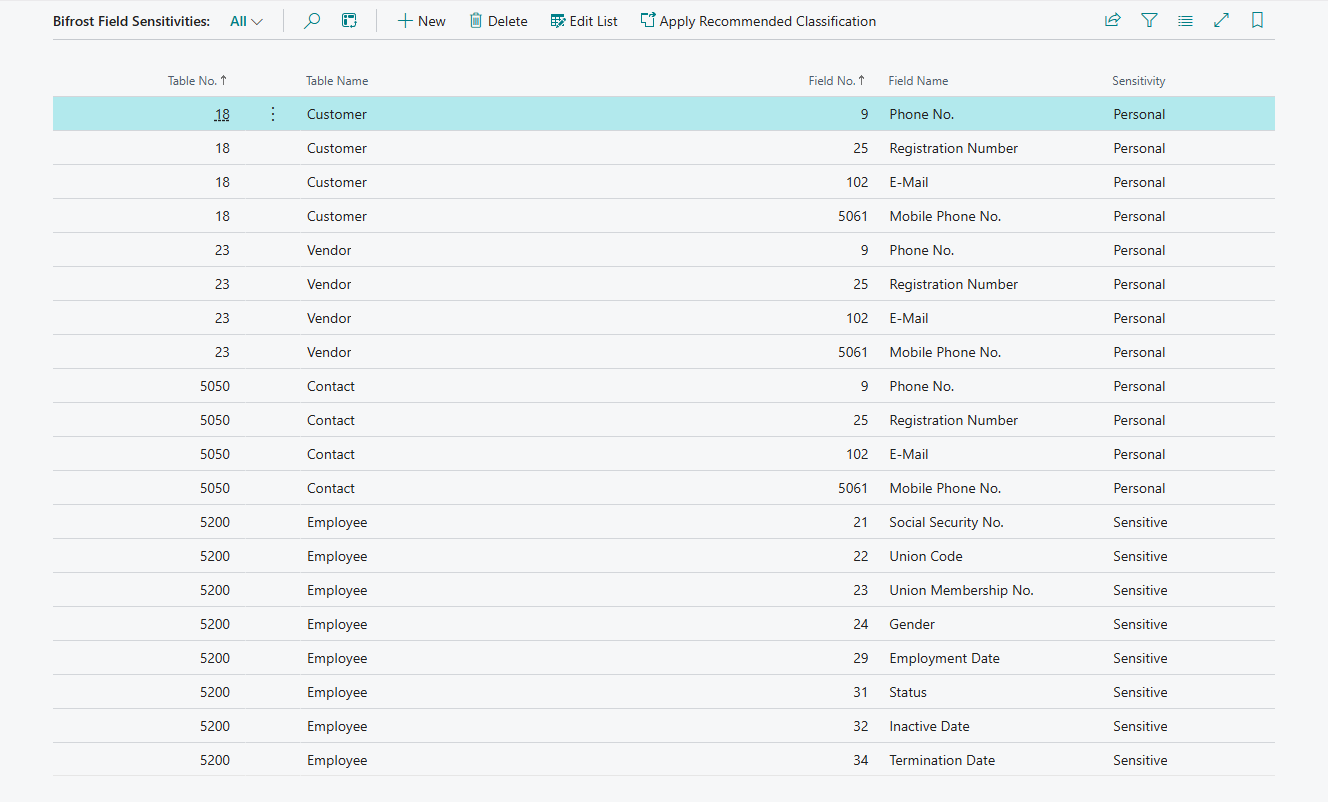
Choose Setup › Field Sensitivities on Bifrost Setup to open Bifrost Field Sensitivities. Each row classifies a field as Sensitive or Personal; a new row needs Table No. and Field No. Apply Recommended Classification fills in a recommended list; change or delete rows as you need.
On Bifrost Setup, under Show more, Respect Data Sensitivity decides what the classification does:
- Off (the default): nothing is hidden.
- Sensitive: fields classified Sensitive are hidden from every user, like the default-hidden fields above.
- Sensitive + Personal: fields classified Sensitive or Personal are hidden.
Open a field for one user
Add a None row in Field Access for the user and the field. The most specific row wins, so the field is opened for that user only, and everything else stays as it is. A None row for the whole table opens every protected field of that table for the user.
What Bifröst always protects
These protections are built in. No Field Access row and no other app opens them.
Neither read nor changed
- Bifröst's own settings and logs: Bifrost Setup, Field Access, guard exceptions, delete setup and delete log, Bifröst user setup, company and user memory, notes, the request log and the approval log. They have their own pages.
- The change log: Change Log Setup, its table and field setup, and Change Log Entry.
- Users and permissions: User, User Property, User Personalization, Access Control, the permission set tables, plans, security groups, agent access and the tenant license state.
- Secrets and connections: Isolated Storage, Token Cache, OAuth 2.0 Setup, Service Connection, Document Service (and its scenarios) and Isolated Certificate.
- Webhooks: webhook and API webhook subscriptions and notifications, external event subscriptions, workflow webhook subscriptions.
- E-mail: e-mail accounts, outbox, sent e-mail, inbox, and the messages, recipients, attachments, errors and retries behind them.
- Field Monitoring Setup, media (Tenant Media, Media and the like) and the employees' Confidential Information.
- Every table that is not an ordinary table, has been removed (obsolete) or exists only on-premises.
Read, but never changed
- Bifröst messages (each user reads their own; administrators read all) and the registry of app secrets.
- Business Central User Setup: a user could widen their own posting dates or approval limits.
- Setups that keep a secret next to an address: Doc. Exch. Service Setup, OCR Service Setup, CRM Connection Setup, CDS Connection Setup, Azure AD App Setup, Exchange Service Setup, Office Admin. Credentials, Image Analysis Setup, IC Partner, Business Unit and AAD Application.
- Approved agents (session sources); approve them as described in Decide which tools may act for a user.
- Retention and classification: Retention Policy Setup and its lines, Retention Period, Data Sensitivity and Bifrost Field Sensitivities.
- Background work and sessions: Job Queue Entry, Job Queue Log Entry, Active Session, Session Event, Event Subscription, Scheduled Task.
- Page Data Personalization, web services (Web Service, Tenant Web Service and its columns, filters and OData settings) and performance profiling.
Single fields never read
In tables that can otherwise be read:
| Table | Never read |
|---|---|
| Bifröst messages | The request and response bodies, their content type and the charge type (the whole table is never changed) |
| Doc. Exch. Service Setup | Id Token |
| ADCS User | Password |
Company configuration fields
These fields are never changed in day-to-day use, because a change would reopen closed periods, break number series or alter what every invoice says:
| Table | Fields |
|---|---|
| General Ledger Setup | Allow Posting From/To, Allow Deferral Posting From/To and their date formulas |
| Accounting Period | Closed, Date Locked |
| No. Series | Default Nos., Manual Nos. |
| No. Series Line | Starting Date, Starting No., Ending No., Warning No., Increment-by No., Last No. Used, Starting Sequence No. |
| Company Information | VAT Registration No., Registration No. |
To set up a company from scratch, an agent can still change them: the user needs BIFROST Force ori, and the agent
asks for a forced change. Such a forced change also passes the ChangeLog Write Guard for every field of these five
tables, whatever the guard setting, so new number series and accounting periods can be created before the change log
is set up. Without the force request they stay closed, and the agent is told how to open them. Give
BIFROST Force ori only to the people who set up companies, and take it away afterwards. No Field Access row opens
these fields.
Other Bifröst apps can add their own protections, and can declare a field write-once: it can be set when the record is created and is never changed through Bifröst afterwards.
Agents that read emails and documents
An assistant that reads content from outside, such as an email, an attachment or a web page, can find text in it that tries to tell it what to do. Bifröst cannot stop an assistant from being misled, but it limits what a misled assistant can do:
- It can still do only what its user may do in Business Central.
- Posting, approvals and the other gated actions need gates you give on purpose. Give users whose assistant reads outside content only the gates they need.
- Fields you close with Field Access or the default protections stay closed, and the ChangeLog Write Guard keeps field changes to fields the change log traces.
- Ask for a posting preview before posting, and look at Bifrost Messages to see every call that was made.
Troubleshooting
What an agent says when a field or a table is closed to it, and what to do, is in the one troubleshooting table for administrators. Ask the agent which fields of a table it may read and change: the answer already takes the user's Field Access rows and the protections into account.