Bifrost Chat in Business Central
Ask about the customer, item or document in front of you, in plain language, without leaving Business Central. This page is for the people who chat and for the administrators who set the chat up. After reading it you can get the chat working for a user, ask it useful questions, and tell what went wrong when it does not answer.
The chat comes with Bifröst Language Models. What the app is and how to install it is on the overview.
Where you find the chat
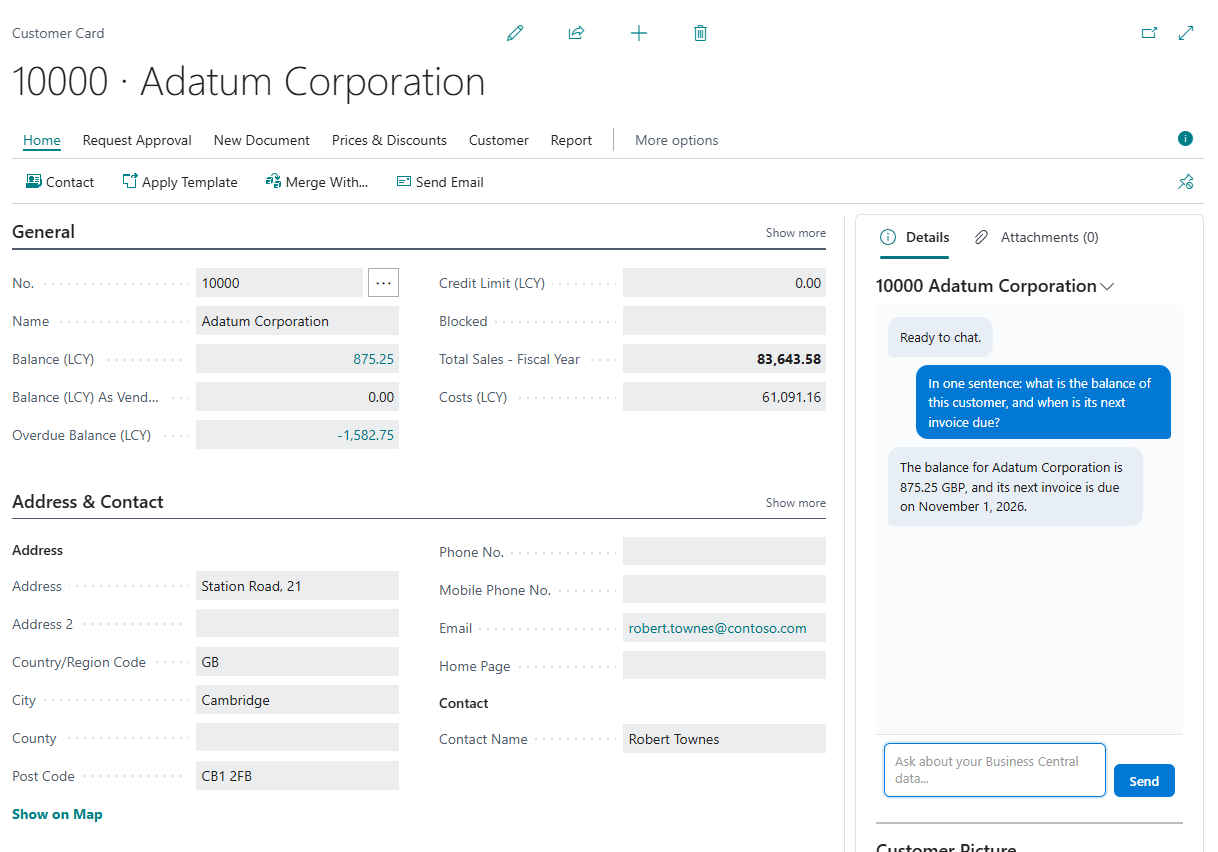
The chat is the Chat via Bifrost part in the FactBox pane, on the right of these pages:
- customers and vendors: the cards and the lists;
- items: the card and the list;
- sales and purchase quotes, orders, invoices, credit memos and return orders, and their lists;
- the ledger entry pages: general ledger, customer, detailed customer, vendor, item, value, VAT and bank account ledger entries;
- incoming documents, the card and the list;
- your Bifröst user setup, so you can try the chat as soon as you have a language model.
The title of the part is the record you are on, for example the customer's number and name. When you move to another record, the chat moves with you and starts a new conversation about it.
The menu next to the title has two actions:
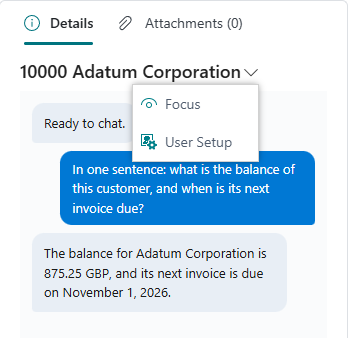
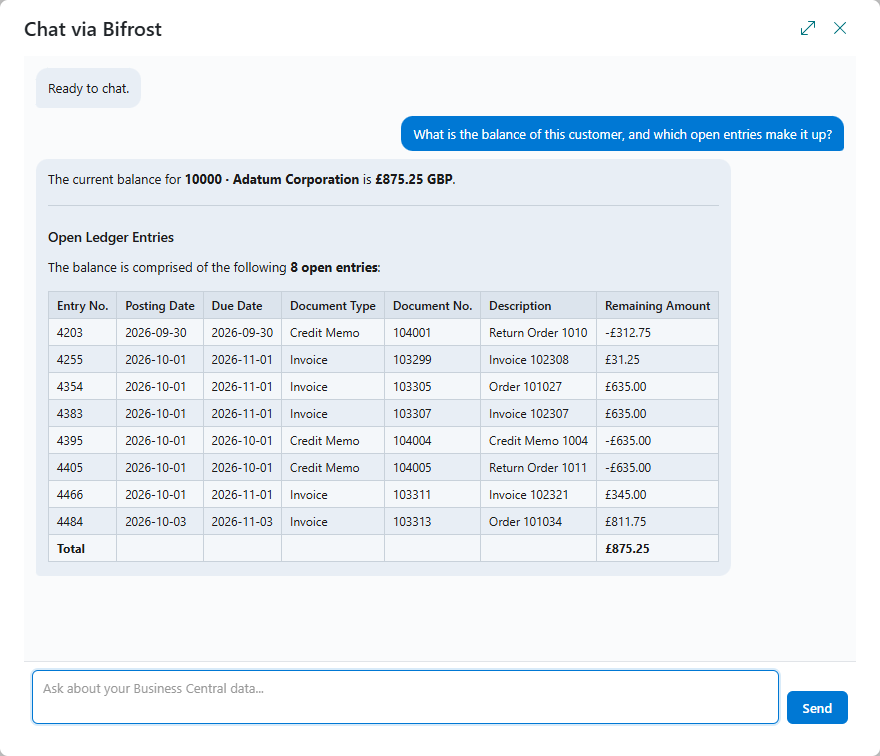
- Focus opens the chat on a full page for the same record, with room for longer answers and tables. Close the page to go back to the record.
- User Setup opens your Bifröst user setup.
Before you start
The chat shows only when all of the following are in place. Until then it does not appear on the pages above.
| Step | What | Who |
|---|---|---|
| 1 | Set up a language model: a code, a provider and a skill, the instructions sent with every chat. See Bifrost Language Models Setup and Bifrost Language Model. | Administrator |
| 2 | Give the model a way to answer. For OpenAI, Azure OpenAI, Anthropic, Google Gemini, xAI or a model of your own: an API key, either a shared key for the company or a personal key per user, entered on the model's card. For Copilot: no key, see below. | Administrator, or each user for a personal key |
| 3 | Assign the permission sets: BIFROST Chat ori and BIFROST LLM Rd ori to everyone who chats, and BIFROST LLM Chat ori as well when the model's provider is not Copilot. | Administrator |
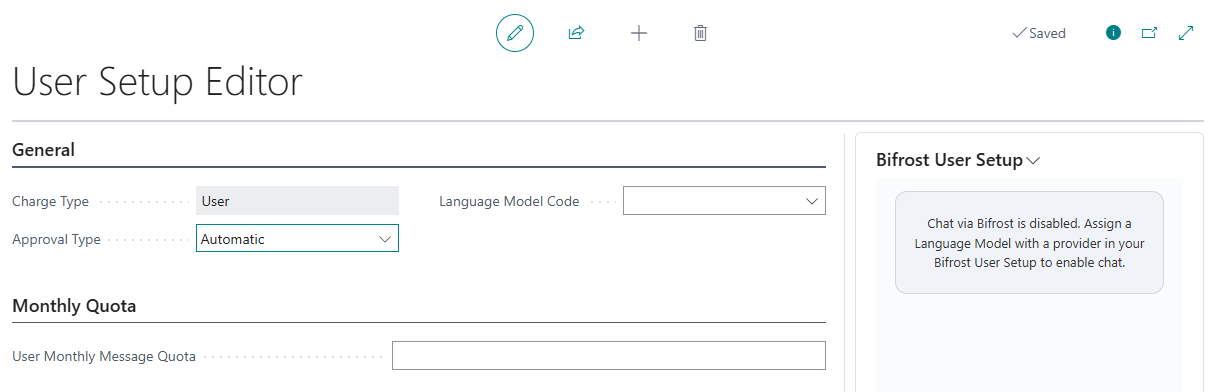
| 4 | On each person's Bifröst user setup, choose the model in Language Model Code. | Administrator, or the user |
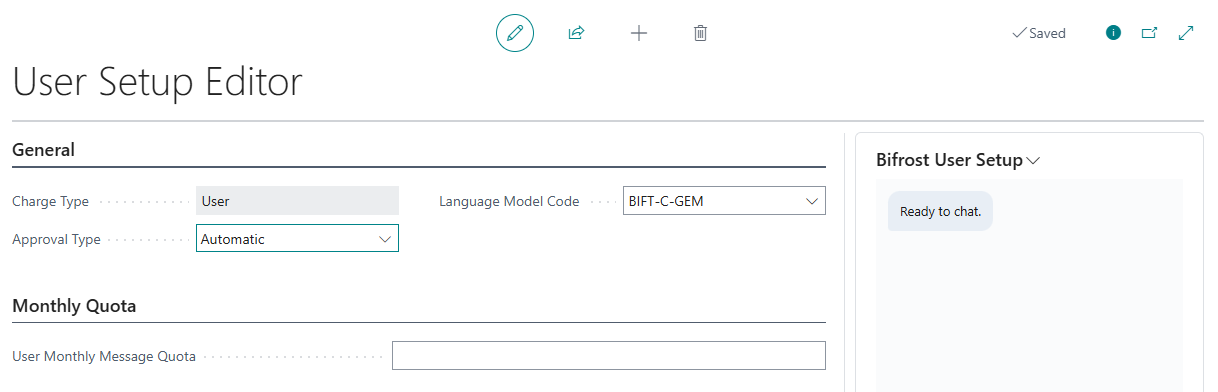
After you change Language Model Code, close the page and open it again: the chat reads the model when the page opens.
Copilot runs on resources Microsoft manages, so it needs no API key and no BIFROST LLM Chat ori. It needs
Business Central online, and an administrator must turn on Bifrost Copilot on the Copilot & agent
capabilities page. Init Copilot Defaults on the Bifrost Language Models list creates a ready Copilot
model.
People who chat also need the Bifröst permission sets for the data they work with. The assistant can do no more than they can; see Permission sets and gates.
Ask a question
Type in the box at the bottom of the chat and choose Send, or press Enter.
- The record is the context. The chat tells the assistant which record you are on, so "What is the balance of this customer, and how much of it is overdue?" needs no customer number.
- It reads live data. The assistant uses Bifröst's operations as tools: it finds records, counts and totals them, and follows a document to its entries. One question can take several steps; the chat shows that it is working until the answer comes.
- It works as you. Every read and every change is made with your own Business Central permissions and within Bifröst's protections, and each one is logged on Bifrost Messages like any other Bifröst call.
- It asks before it writes. Before the assistant creates or changes a record, it says what it is about to do and waits for you to confirm.
- It answers in your language, the language of your Business Central session.
- It can remember. Ask it to remember a preference and it keeps it for your next conversations. It also reads what has been stored for the whole company.
Good questions name what you want to know and about what: "Which of this customer's invoices are overdue, oldest first?", "Is anything on this order short in stock?", "Summarise these entries by account."
Answers you can trust
- Figures come from data read in this turn. The assistant is told never to state a business figure it has not read. If an answer still contains figures that it has not read from Business Central in this turn, Bifröst sends the answer back once and asks the model to check the figures with a tool, or to say that it cannot check them.
- The current question is always sent. A model can take in only so much at once: its context window, set in Context Tokens on the language model card. In a long conversation, Bifröst leaves out the oldest exchanges first and shortens very large data it has read, so that the conversation fits. Your current question and what was read for it are always kept. For a new task, start a new conversation: open the page again.
- The conversation is not saved. Closing the page ends it, so copy what you want to keep.
When something goes wrong
| What you see | What to do |
|---|---|
| The chat does not appear on a page | One of the steps in Before you start is missing: a permission set, a Language Model Code on your user setup, or a key for the model. Open your Bifröst user setup: the chat always shows there. It says that it is disabled when no model is chosen, and asks for a key when the model has none. |
| Chat via Bifrost is disabled. Assign a Language Model with a provider in your Bifrost User Setup to enable chat. | Choose a Language Model Code on your Bifröst user setup, close the page and open it again. If one is chosen, ask your administrator whether the model has a provider. |
| Copilot is not enabled for Bifrost Chat. Ask your administrator to enable it on the Copilot & agent capabilities page. | An administrator turns on Bifrost Copilot on Copilot & agent capabilities. Copilot is available only in Business Central online. |
| LLM API returned status 401 or 403 | The provider refused the API key. The administrator enters the shared key again, or you enter your personal key again, on the language model card, then chooses Test Connection. |
| LLM API returned status 429 | The provider's limit or quota for the key is used up. Wait and try again, or raise the limit with the provider. |
| Could not reach the LLM API | Business Central could not connect to the provider. Check the model's Base URL, and that the provider is up. |
| HttpClient calls are blocked in this environment | The app is not allowed to call the internet. An administrator runs the setup wizard on Bifrost Setup, which allows it. |
| The answers do not fit your work | Check the skill on the language model card, and the system prompt on your Bifröst user setup. Ask the assistant what it read to answer. |
Next steps
- Chat via Bifrost: the help of the chat itself
- Bifrost Language Model: provider, model, key, Context Tokens and skill
- Usage and billing: how the chat's calls are counted