Document Exchange Setup
Document Exchange Setup is where you connect Business Central to the document exchange networks of Bifröst Iceland DocEx. For each network you choose the environment, store the credentials and test the connection. Afterwards your assistant, integration or routine can send and receive e-invoices.
Open it from Bifrost Setup: choose Document Exchange Setup in the Apps group. There is one setup per company; it is created the first time the page opens.
Networks
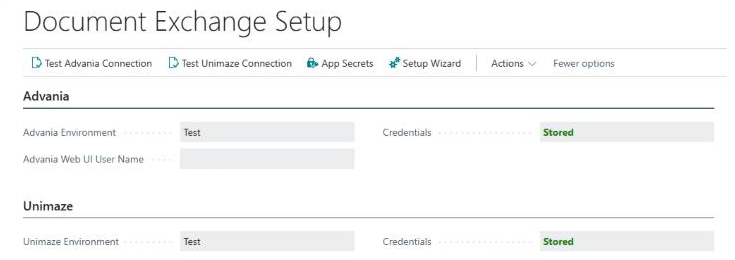
Each network has its own group with an Environment field and a read-only Credentials status.
| Group | Fields |
|---|---|
| Advania | Advania Environment (Live or Test), Advania Web UI User Name, Credentials |
| Unimaze | Unimaze Environment (Live or Test), Credentials |
- Environment decides which service is called. Credentials are stored per network and per environment, so a Test credential is never used for a Live call. When you change the environment, the Credentials status shows whether that environment has its values.
- Advania Web UI User Name is used only by Open Advania Web UI, to open the Advania web interface with single sign-on. It is not a credential.
- Credentials shows only whether the values are stored, never the values themselves.
Credentials
Credentials are not fields on this page. You enter each value once in a masked dialog; it is kept in the Bifröst secret store and never shown again.
| Network | Values |
|---|---|
| Advania | The user name and password of the Advania web service user. |
| Unimaze | The user name and password. To sign in with an API key instead, leave the user name empty and store the key with Set Password or API Key. |
Credentials are not copied from an earlier app or an upgrade. Enter them again after installing.
Actions
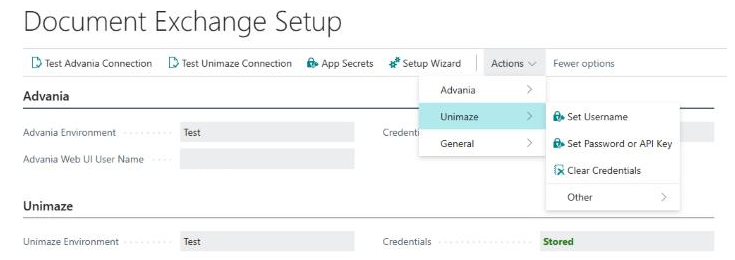
| Group | Action | What it does |
|---|---|---|
| Advania | Set Username / Set Password | Stores the value for the selected environment. |
| Clear Credentials | Removes both values for the selected environment, after you confirm. | |
| Test Advania Connection | Signs in to Advania and shows the trading partners the user can exchange documents for, with send, receive and view rights, or says why the connection failed and what to check. | |
| Open Advania Web UI | Opens the Advania web interface in the browser with single sign-on. | |
| Unimaze | Set Username / Set Password or API Key | Stores the value for the selected environment. |
| Clear Credentials | Removes both values for the selected environment, after you confirm. | |
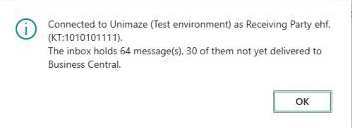
| Test Unimaze Connection | Signs in to Unimaze and shows the company's party on the network, found by the Registration No. on Company Information, and how many messages are in the inbox and unread, or says why the connection failed and what to check. | |
| General | App Secrets | Opens the list of the app's secrets: which are stored, when and by whom. |
| Setup Wizard | Opens the Bifrost Setup Wizard, which allows HTTP requests for the Bifröst apps. | |
| Update BII Data Exchange Definitions | Creates the data exchange definitions that read received e-invoices and credit notes again from scratch. Run it before you receive documents, and after an update if you are asked to. | |
| BIS30 Code Map | Opens the BIS30 Code Map. | |
| VAT G/L Account Map | Opens the Vendor VAT G/L Account Map. |
Outgoing HTTP requests
Every network is reached over HTTP. Until HTTP requests are allowed for the Bifröst apps, no call to a network succeeds and Bifrost Setup shows a notification with Start setup wizard. Choose it, or Setup Wizard on this page, and allow the requests.
Get started
- On Bifrost Setup, choose Document Exchange Setup. If HTTP requests are not allowed yet, choose Setup Wizard first.
- Make sure Registration No. on Company Information holds the company's kennitala.
- Choose Test as the environment of each network you use.
- Enter the credentials with Set Username and Set Password (or Set Password or API Key).
- Choose Test Advania Connection or Test Unimaze Connection and read the result.
- If you receive invoices, choose Update BII Data Exchange Definitions and fill in the BIS30 Code Map and the Vendor VAT G/L Account Map.
- Send a test invoice from start to finish, then switch the environment to Live and enter the Live credentials.